Studio Six Apps

    • Knowledgebase
    • Sample Page
betterdocs-category-icon

Flexi Delivery & Pickup Date

37
  • Getting Started
    • Installation
    • Add Delivery Date & Time Fields to Shopify Templates
    • Import or Export Delivery Settings
  • Common Delivery Schedule Settings
    • Date Settings
      • How to show the estimated delivery date text?
      • How to add the maximum number of deliveries you can manage?
      • How to set a cut-off time for Same Day and Next Day deliveries?
      • How to set up preparation time for deliveries?
      • How to enable Delivery Days & Specific Delivery Dates?
    • Additional Settings of Custom Delivery Schedule
      • How Do Custom Delivery Schedules Work in Different Combinations?
      • How to prioritize custom delivery schedules?
      • How to Let Customers Choose Between Delivery and Pickup?
      • How to Create a Custom Delivery Schedule Based on Pickup Locations?
      • How to Create a Custom Delivery Schedule Based on Collections?
      • How to Create a Custom Delivery Schedule Based on Shipping Methods?
      • How to Create Custom Delivery Schedule Settings Based on Products?
    • Setting Up Delivery Time Slots
      • How to set up time slots for different weekdays and specific dates?
      • How to create additional charges for the ‘As Soon As Possible’ time slot option?
    • Weekday Based Delivery Schedule
      • Weekday Based Delivery Schedule
    • Additional Delivery Charges
      • How to Set Up Rush Delivery Charges Based on Urgency?
      • How to set a Minimum Order Amount for waiving delivery charges? 
      • How to set additional charges for Same Day & Next Day Delivery ?
    • Holidays
      • How do I block certain dates as Holidays?
  • Settings
    • Set Business Working Days
    • Block Time Slots
    • Common Schedule Settings
      • How to Set the Global Maximum Order Deliveries for Time Slots?
      • How to Apply the Default Delivery Schedule When No Priority is Set?
      • How to Use Global Maximum Orders per Day for Custom Settings?
      • How to add the maximum number of deliveries you can manage per product?
  • Appearance
    • Field Appearance
    • Calendar Appearance Settings
  • Order Listing
    • Order Listing
  • Delivery Calendar
    • How to Filter Order Deliveries in the Delivery Calendar?
    • View Orders by Day, Week, or Month
    • Order Display
  • Pricing
    • Pricing Plans & Upgrade Options
  • FAQs
    • FAQs & Troubleshooting Guide
  • Uninstall the App
    • Uninstall the App
  • Home
  • Docs
  • Flexi Delivery & Pickup Date
  • Settings
  • Common Schedule Settings
  • How to Apply the Default Delivery Schedule When No Priority is Set?

How to Apply the Default Delivery Schedule When No Priority is Set?

Table Of Contents
  • Why Use This Setting?
  • How to Apply default delivery schedule when no priority is set
  • Frontend Experience: What Your Customers Will See

If products in the cart belong to different delivery schedules and no priorities are set, enabling the “Apply default delivery schedule when no priority is set” option ensures that the default delivery schedule will be applied during checkout.

Why Use This Setting? #

A conflict can happen in situations like:

  • An order matches both a shipping method-based schedule and a collection-based schedule, each with different available days.
  • A product belongs to multiple collections, and both collections have different delivery schedules.
  • A customer selects a pickup location that has one delivery schedule, but the product they selected also belongs to a custom product-based schedule.

How to Apply default delivery schedule when no priority is set #

By default, the setting Apply default delivery schedule when no priority is set is disabled.

To enable it:

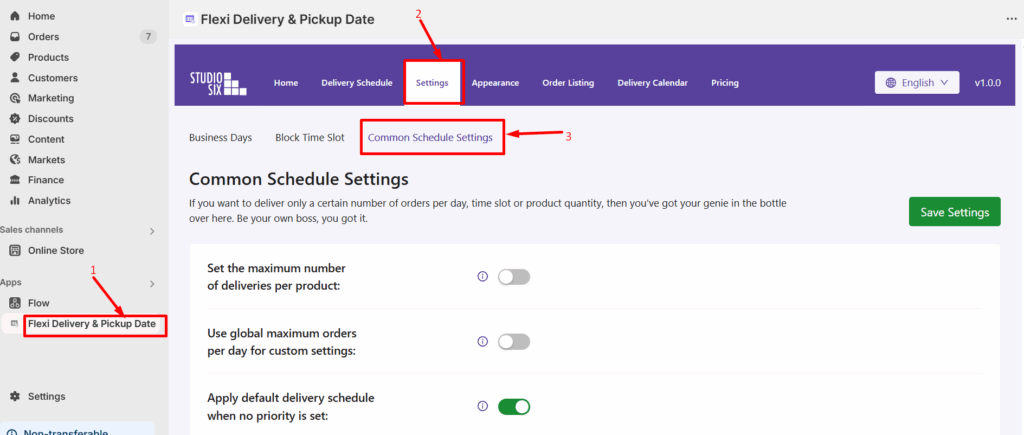
  • From your Shopify admin dashboard, go to Apps > Flexi Delivery & Pickup Date > Settings > Common Schedule Settings.
  • Enable the option Apply default delivery schedule when no priority is set.
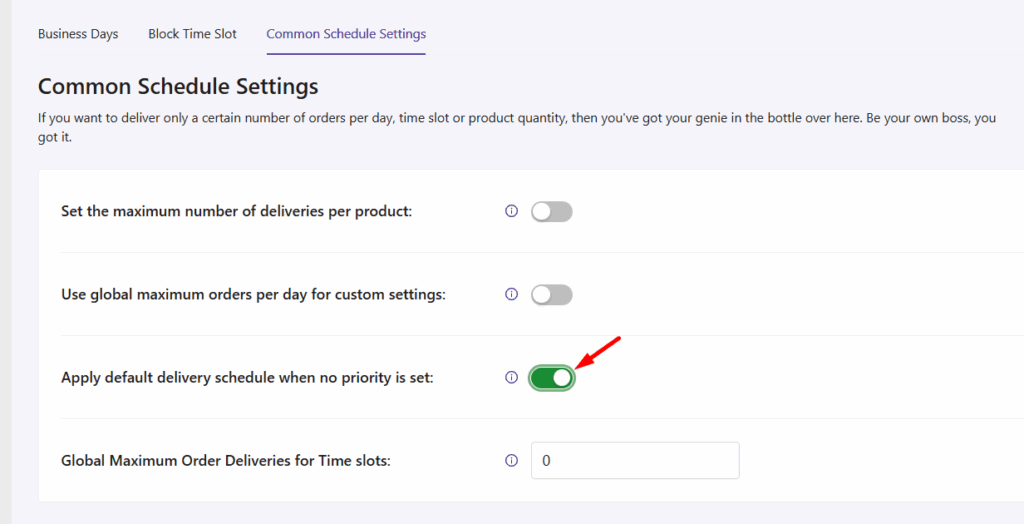
  • Click Save Settings.

Example Scenario:

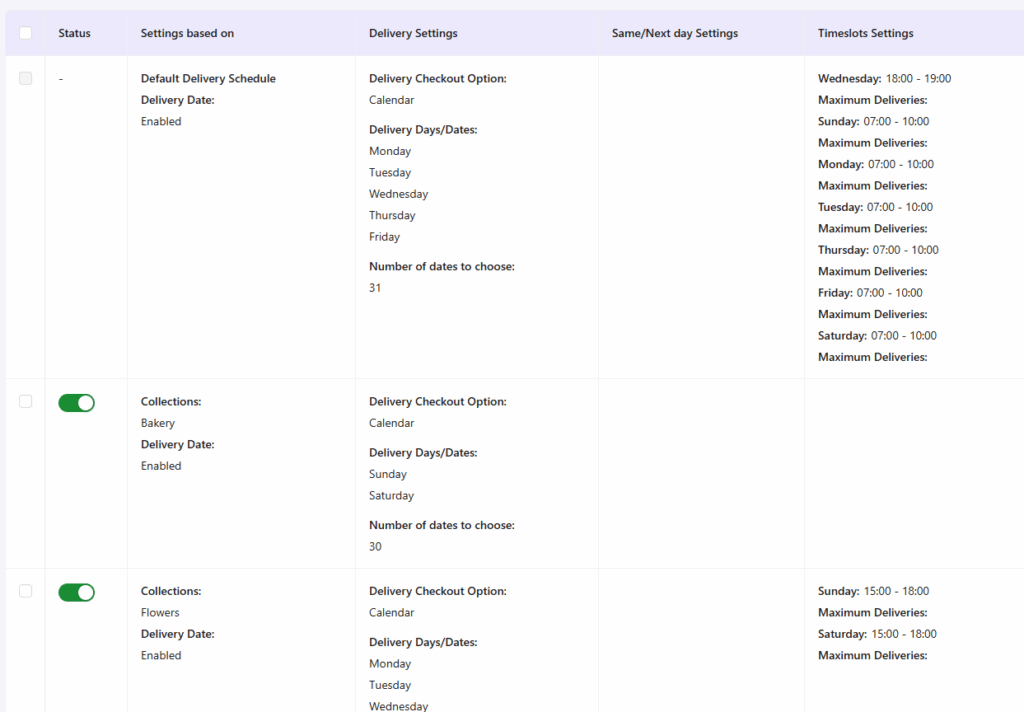
Let’s say you have the following delivery schedules set up:

SchedulePriorityProduct CategoryDelivery Days
Time Slots
Default
–
–Monday to Friday –
Schedule 1 –FlowersMonday, Tuesday, Wednesday –
Schedule 2 –Bakery
Saturday, Sunday
11:00 PM– 12:00 PM

Based on the setup above, this is how the delivery schedules will appear:
Frontend Experience: What Your Customers Will See #

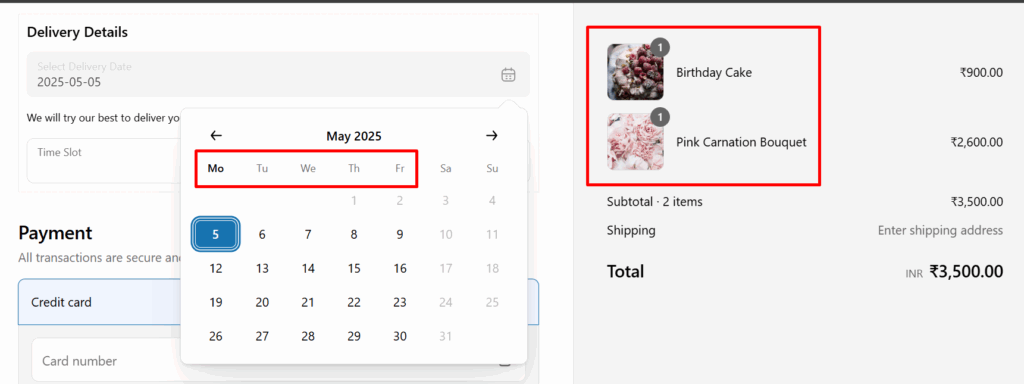
Now, if a customer adds:

  • A Bouquet from flowers collection(from Schedule 1), and
  • A cake from bakery collection(from Schedule 2),

If no priority is defined for either schedule, then the Default Delivery Schedule will be applied.

In this case, the customer will only see delivery available from Monday to Friday, as per the Default Schedule.
Note: If this option ‘Apply default delivery schedule when no priority is set‘ is not enabled, and when no priority is set, then the common settings of the custom delivery schedule gets applied. Learn more about how this works when no priorities are set →

What are your feelings
Share This Article:
  • Facebook
  • X
  • LinkedIn
  • Pinterest
Updated on May 19, 2025

Studio Six Apps

  • Blog
  • About
  • FAQs
  • Authors
  • Events
  • Shop
  • Patterns
  • Themes

Twenty Twenty-Five

Designed with WordPress