Setting Up a Product-Specific Delivery Schedule #
Some products may require different delivery timelines. With custom delivery schedules, you can set specific days and time slots for individual products. For example, the “Pink Carnation Bouquet” might need extra handling time, so you can adjust its delivery schedule as you need.
Admin Configuration #
Follow the steps below to set up a delivery schedule based on the Products:
- Go to your Shopify admin dashboard and open Apps > Flexi Delivery & Pickup Date > Delivery Schedule.
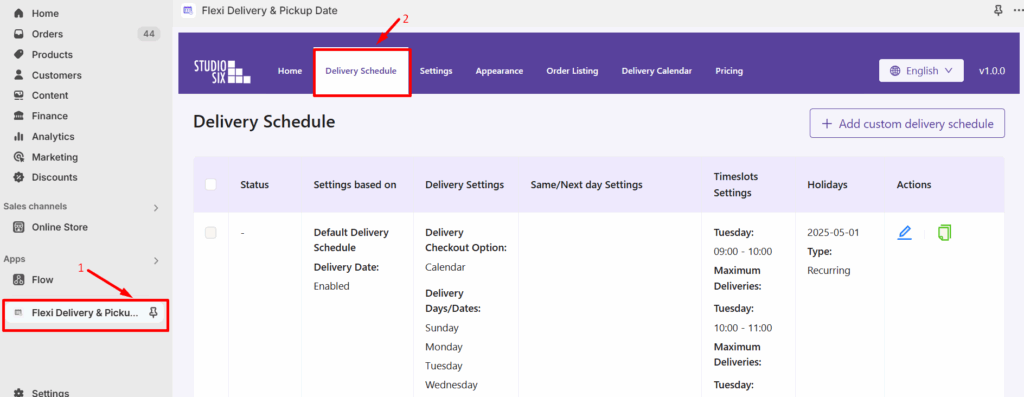
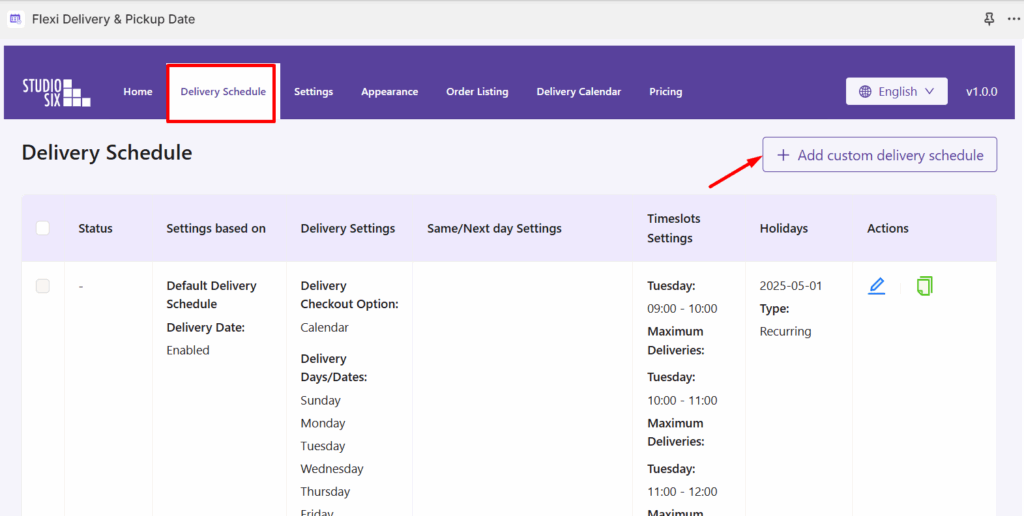
- Click on the ‘Add Custom Delivery Schedule‘ button to create a new delivery schedule.
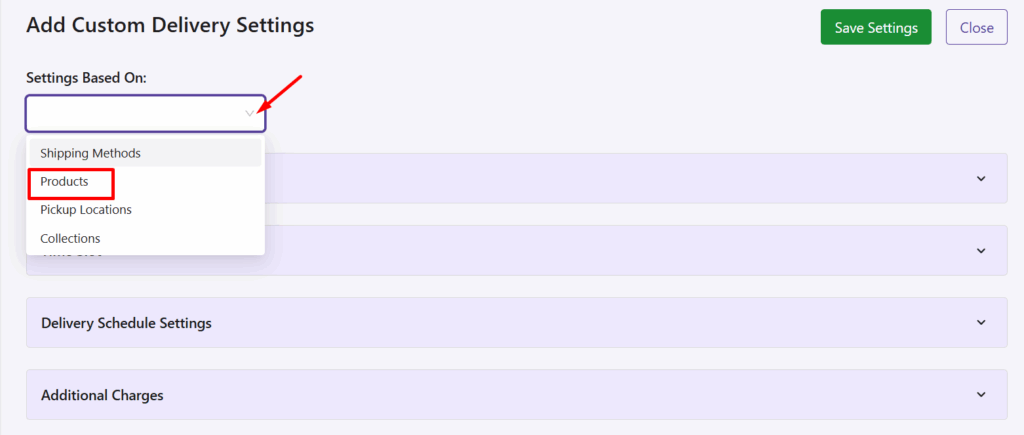
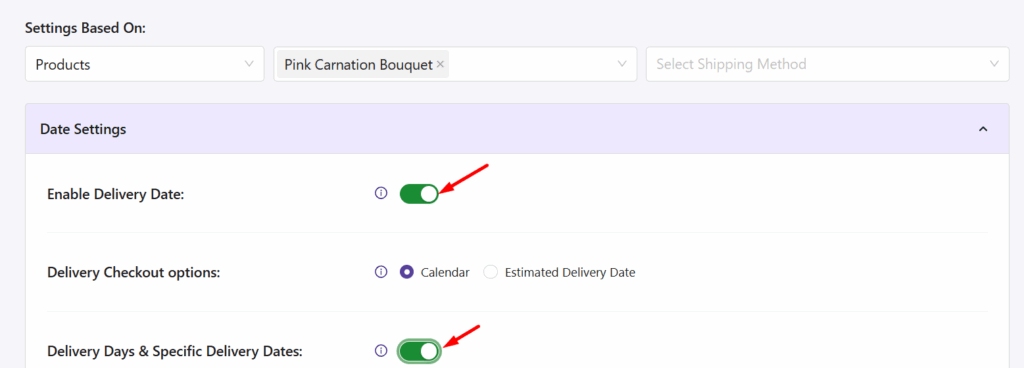
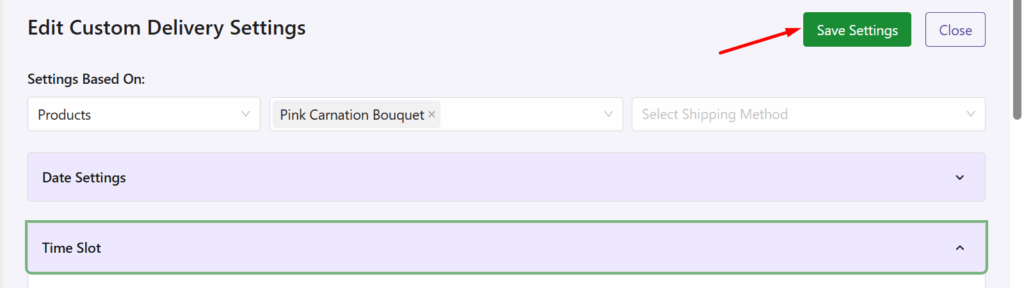
- In the Settings Based On dropdown, select Products.
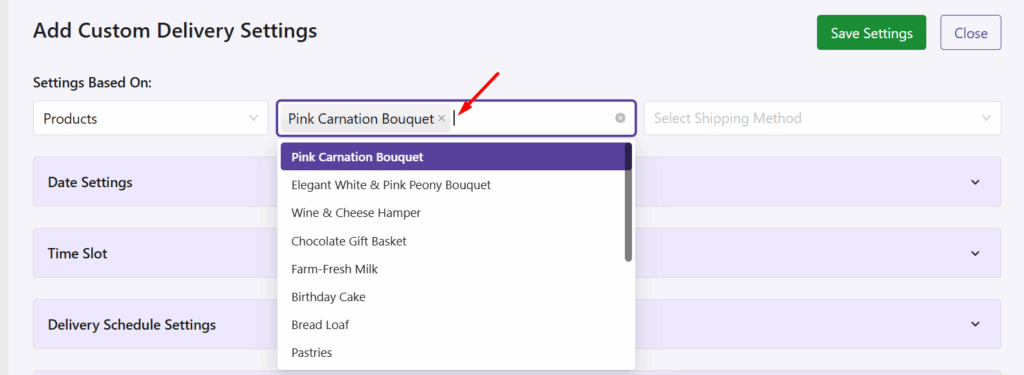
- Choose the product you want to customize from the list. Let’s take “Pink Carnation Bouquet” as an example.
- After that, navigate to the “Date Settings” section under the custom delivery schedule you are editing
- Enable the “Enable Delivery Date” option.
- Enable the “Delivery Days & Specific Delivery Dates” option to enable delivery days/dates and specify available days.
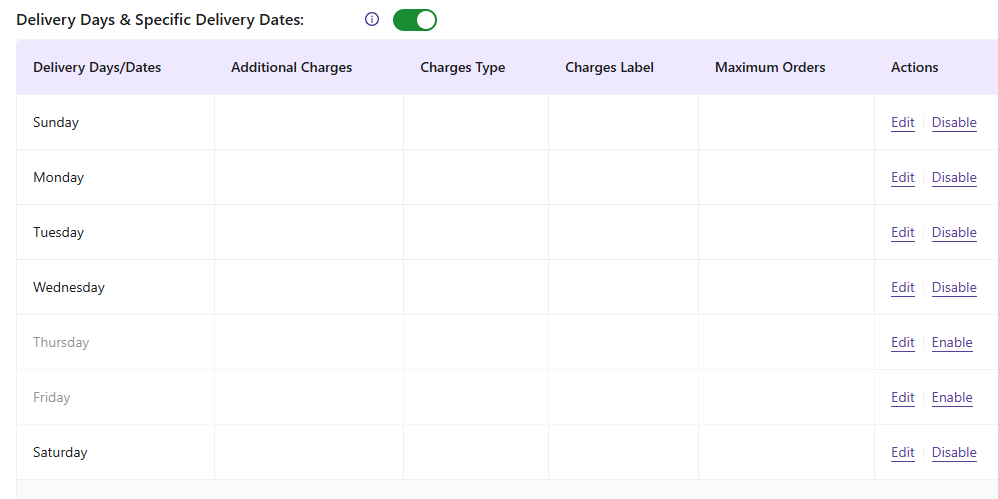
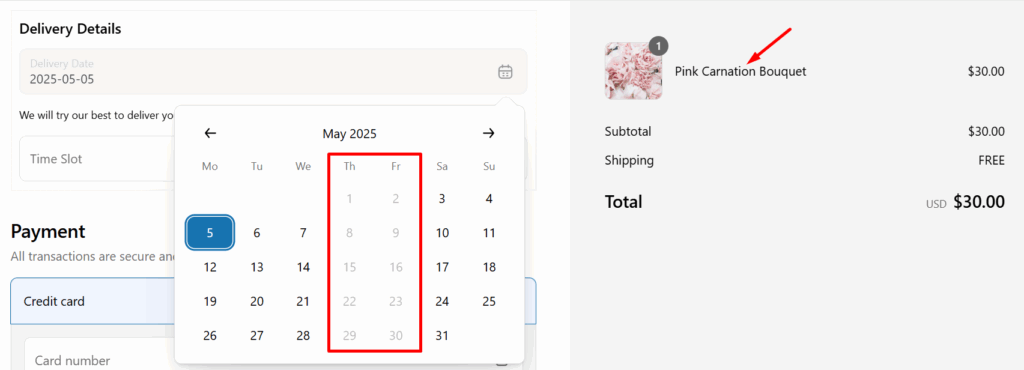
- When you enable “Delivery Days & Specific Delivery Dates“, a table appears where you can enable/disable delivery for each weekday or date. I have excluded the weekdays – Thursday and Friday for delivery.
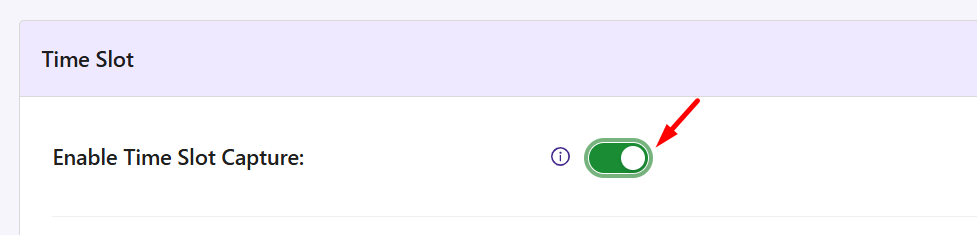
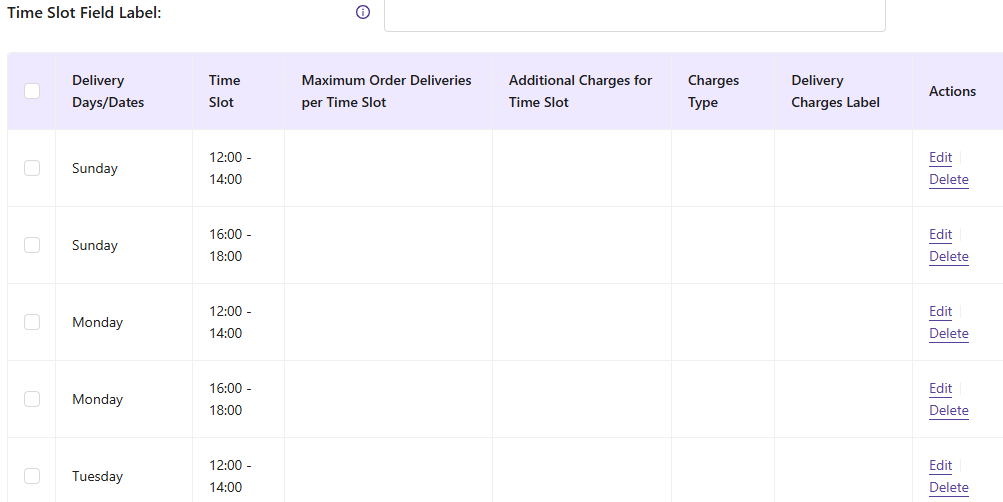
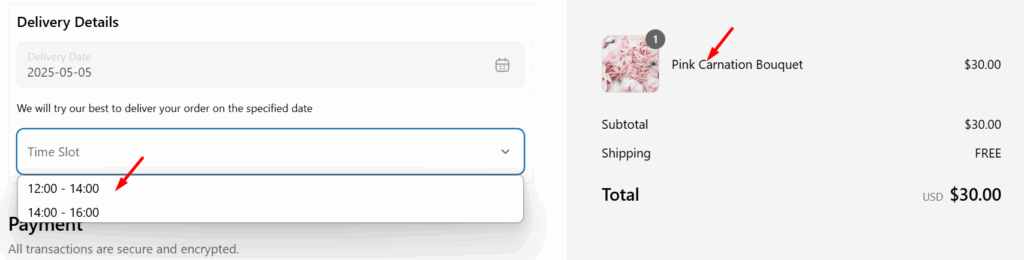
- Similarly, you can use the Time Slot dropdown to enter your time slot preferences. For instance, you can add timeslots from 12:00 to 14:00 and 16:00 to 18:00.
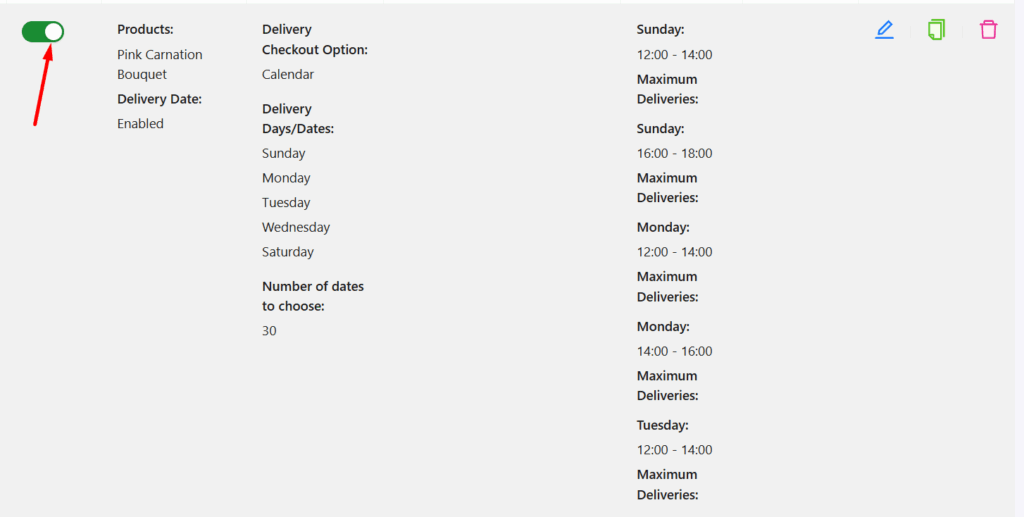
- Once all the configuration has been done, click on Save Settings, and when the close button is clicked, the delivery schedule will be listed as one of the schedules.
- Enable the toggle button that appears for that custom schedule.
Frontend Experience: What Your Customers Will See #
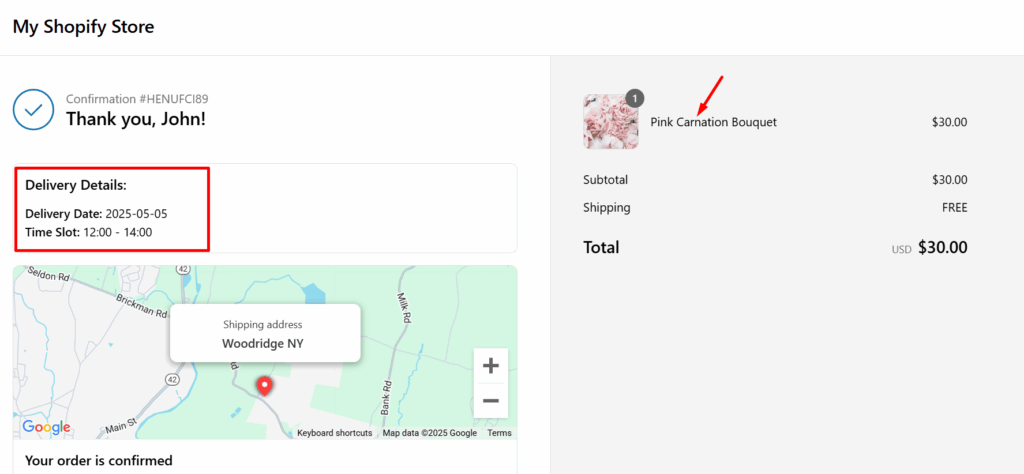
When adding the “Pink Carnation Bouquet” to the cart, customers can select a delivery date and time slot at checkout, with only the available days (excluding Thursdays and Fridays)as set in the delivery schedule.
Similarly, only the configured time slots will be available in the time slot field.
The selected delivery details will appear on the Order Confirmation Page for clarity.
Note: If your cart contains multiple products with different schedules, the system will apply the most restrictive common settings to ensure accurate delivery planning.


