The weekday-based delivery schedule is useful for stores that operate on specific days, or have varying cut-off times, or need buffer time before dispatching orders.
Enable Weekday Based Schedule #
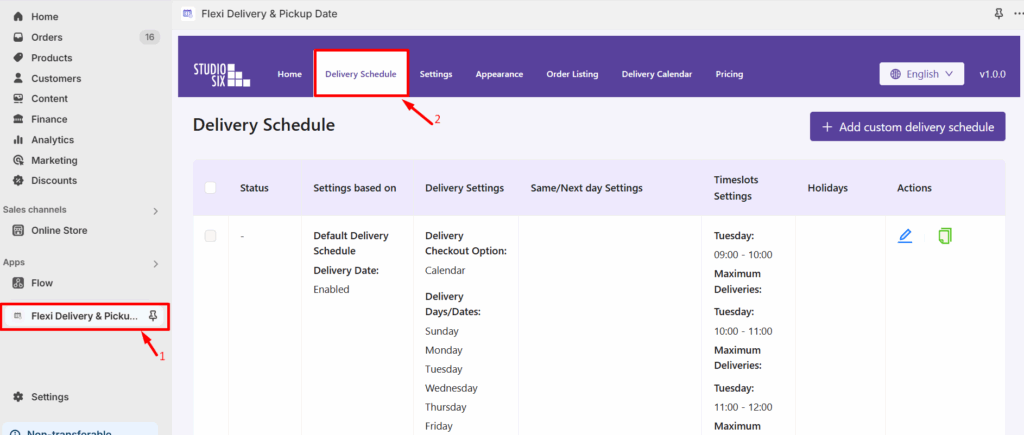
- Go to Apps> Flexi Delivery & Pickup Date > Delivery Schedule from your Shopify admin dashboard.
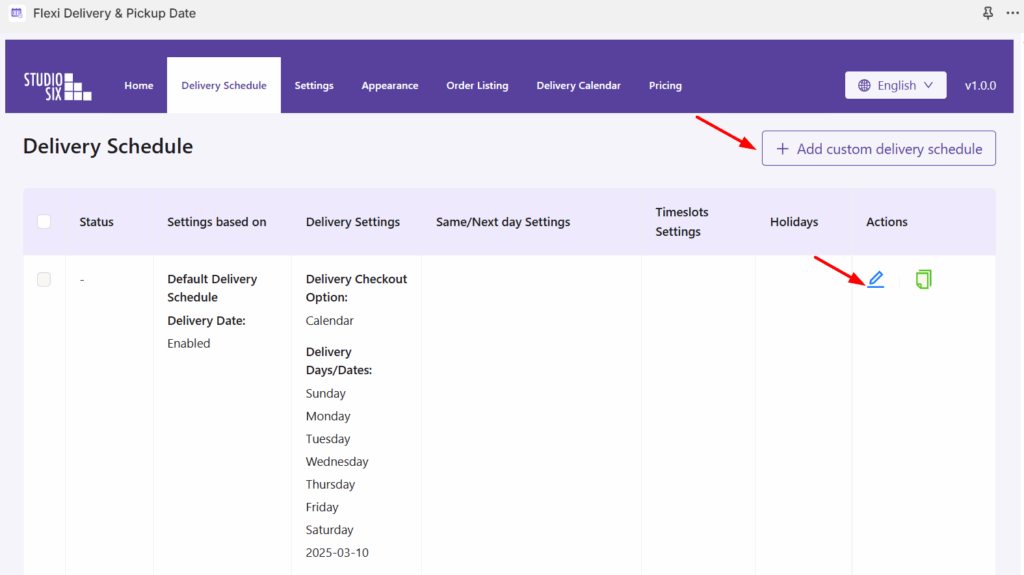
- Click the Edit icon to edit an existing delivery schedule, or click Add Custom Delivery Schedule to create a new one. Once you choose a delivery schedule, we will proceed to enable the weekdays on that selected schedule.
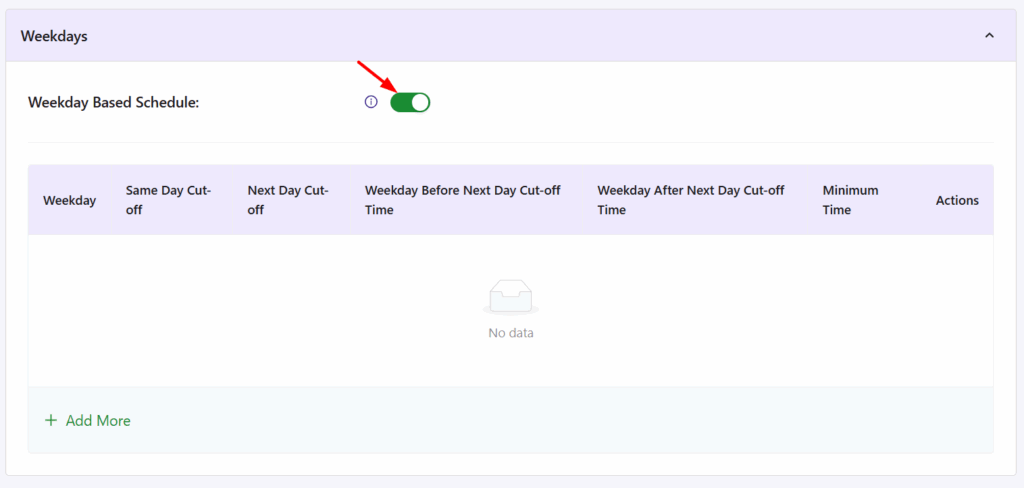
- Scroll down to the Weekdays section and enable the Weekday-Based Schedule option.
Add and Configure Weekday Settings #
- Once you’ve enabled the Weekday Based Schedule Settings option, the next step is to click the “+ Add More” button.
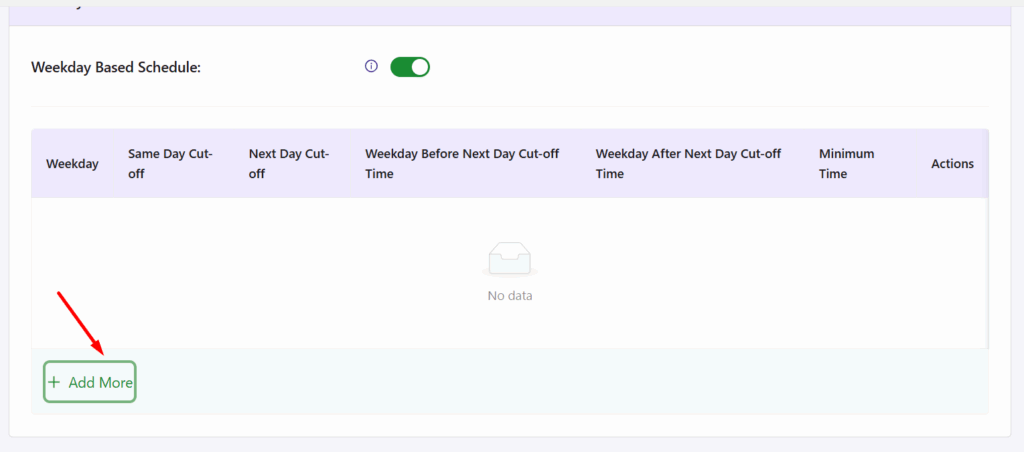
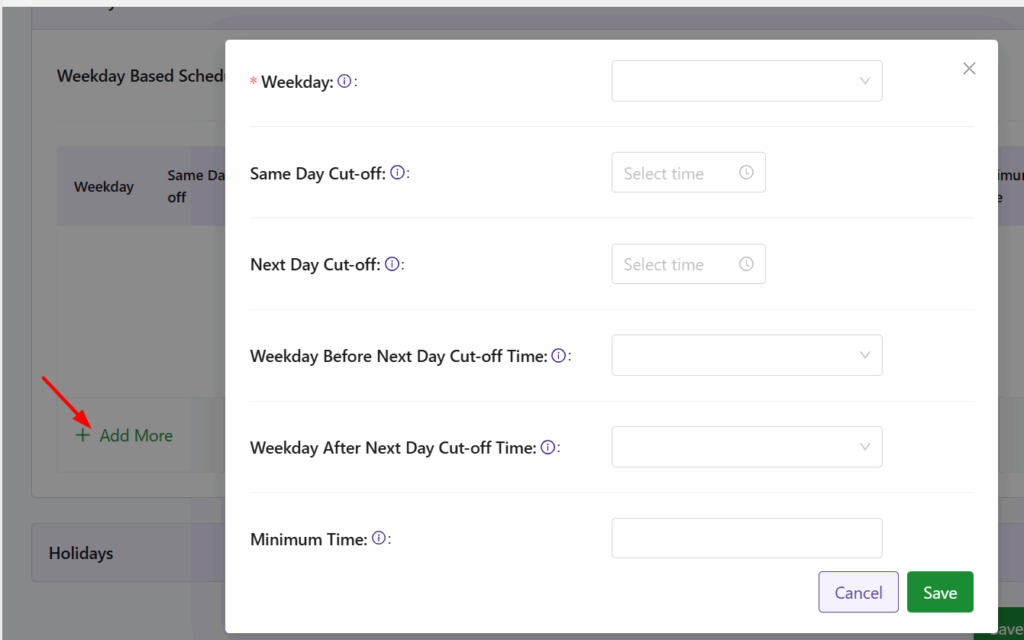
- A pop-up will appear that lets you configure settings like cut-off time, next-day availability, and delivery time preferences for the selected weekday.
Weekday #
The “Weekday” field allows you to choose specific days of the week for which you want to define different settings, such as Same Day cut-off, Next Day cut-off, Minimum Time for preparation, etc. From the dropdown, choose the weekday (e.g., Monday, Tuesday, etc.) that you wish to configure.

Same Day Cut-off #
This setting specifies the cut-off time for same-day delivery. Orders placed after this time (according to the store’s timezone) will not be eligible for delivery on the same day.
Example Scenario:
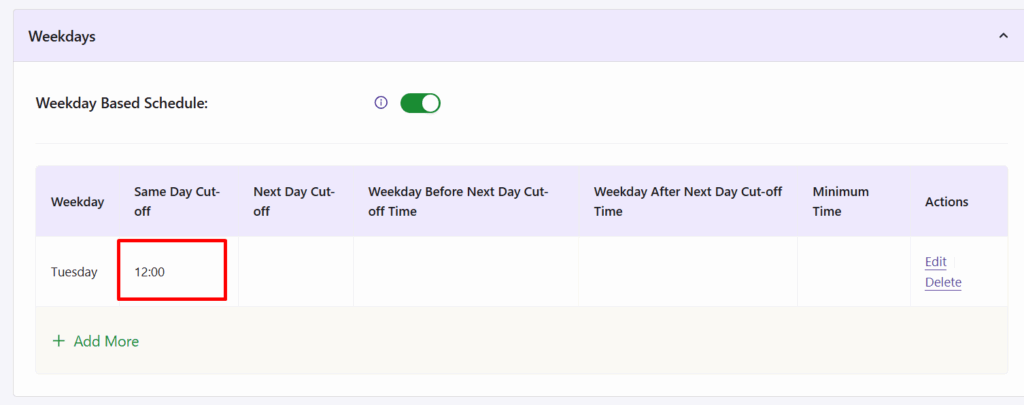
Let’s say you accept same-day orders only until 12 PM on Tuesdays.
How to Configure:
- Go to Weekday Settings, select Tuesday as the weekday and set the same day cut-off time to 12 PM.
Frontend Experience:
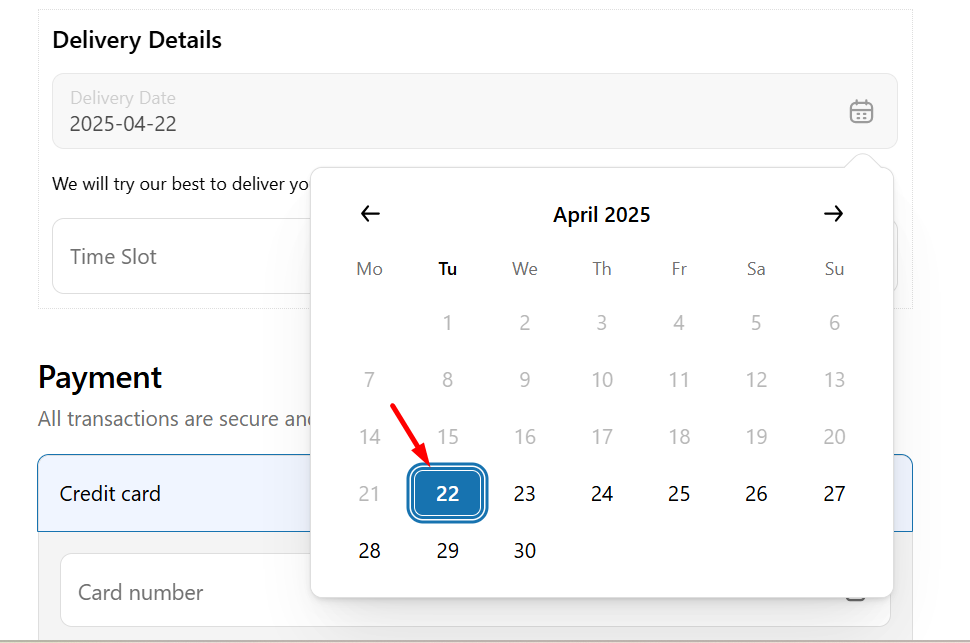
If a user visits your store at 11 AM on Tuesdays, same-day delivery will be available.
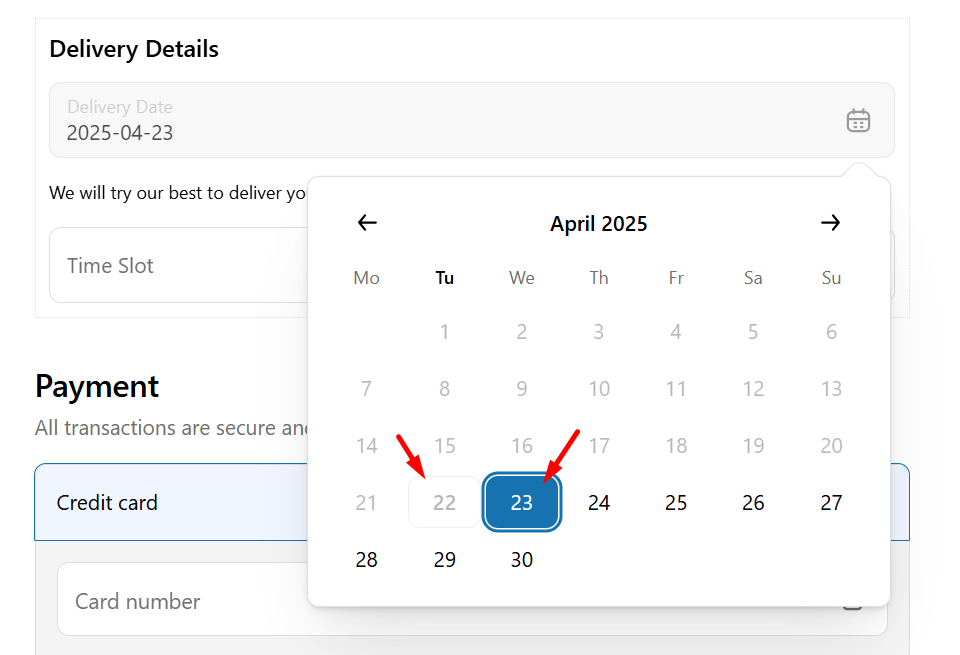
If they visit at 12:00 PM or later, then the same day(Tuesday) will be disabled, and the calendar will show the next available delivery date.
Next Day Cut-off #
This setting decides the cut-off time by which customers must place their order to get it delivered the next day.
Example Scenario:
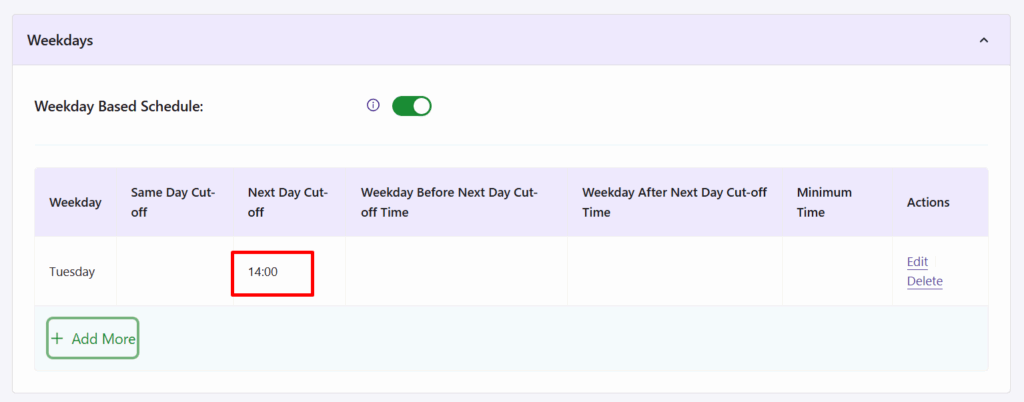
- Let’s say your store operates from Monday to Saturday. You want Tuesday orders to be placed before 2 PM for Wednesday delivery.
How to Configure:
- Set Next Day Cut-off as 14:00 (2 PM) for Tuesday in Weekday Settings.
Frontend Experience:
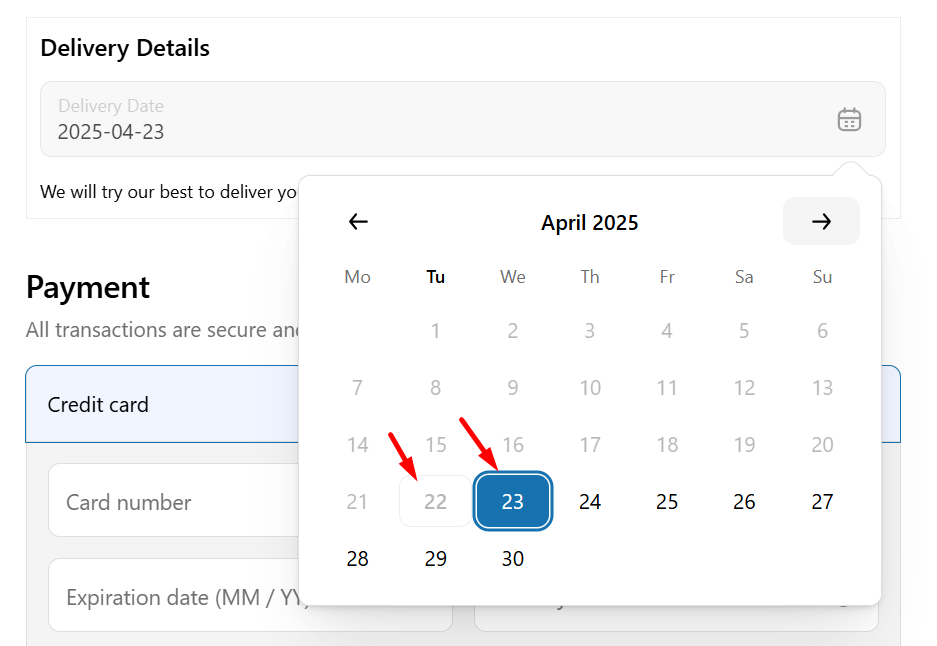
If a customer visits before 2 PM on Tuesday, delivery is available on Wednesday.
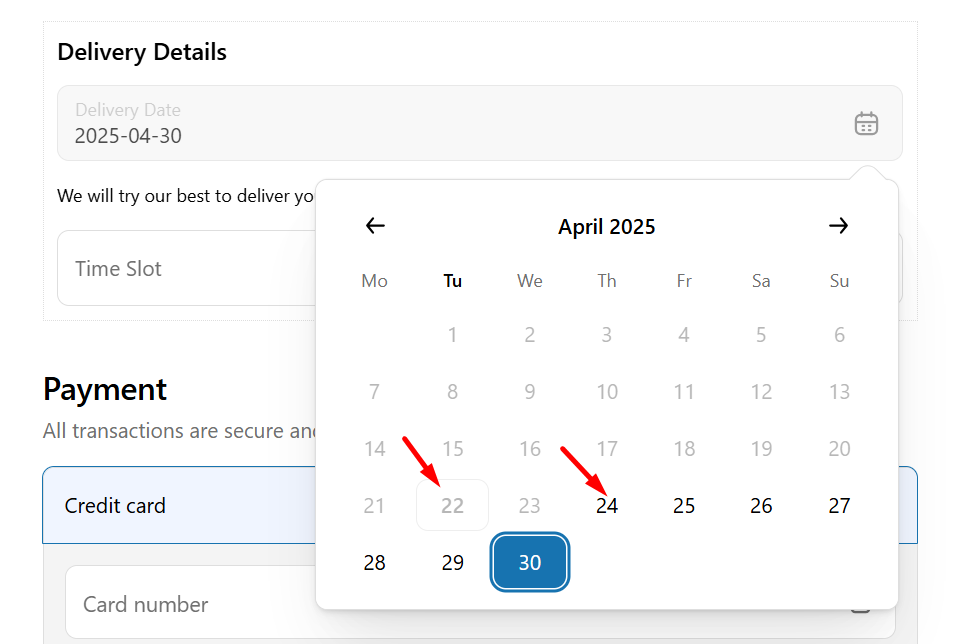
If they visit after 2 PM on Tuesday, only the next available delivery dates after Wednesday will be shown.
Weekday Before Next Day Cut-off Time #
This setting allows you to define the first available weekday on the calendar when an order is placed before the next day’s cut-off time.
By default, the next available date after the cut-off is the immediate next weekday. However, if you wish to exclude a specific weekday from being available, even when it’s the immediate next one, this setting lets you skip it and show an alternative weekday instead.
Example Scenario:
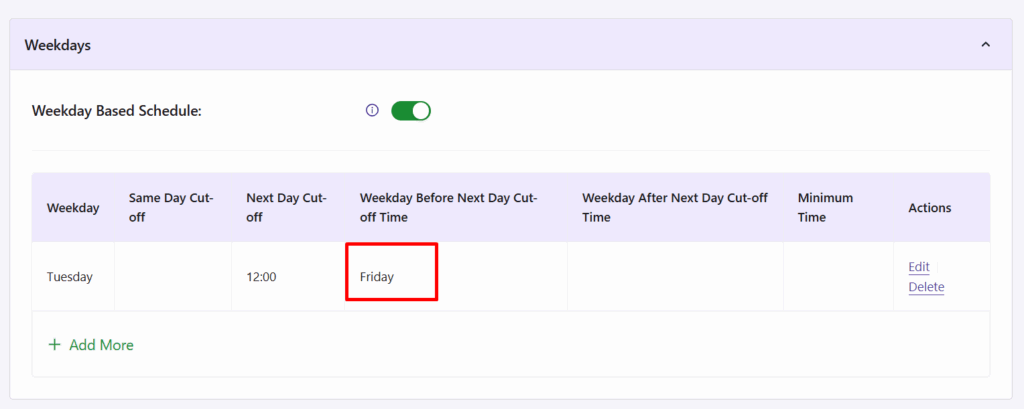
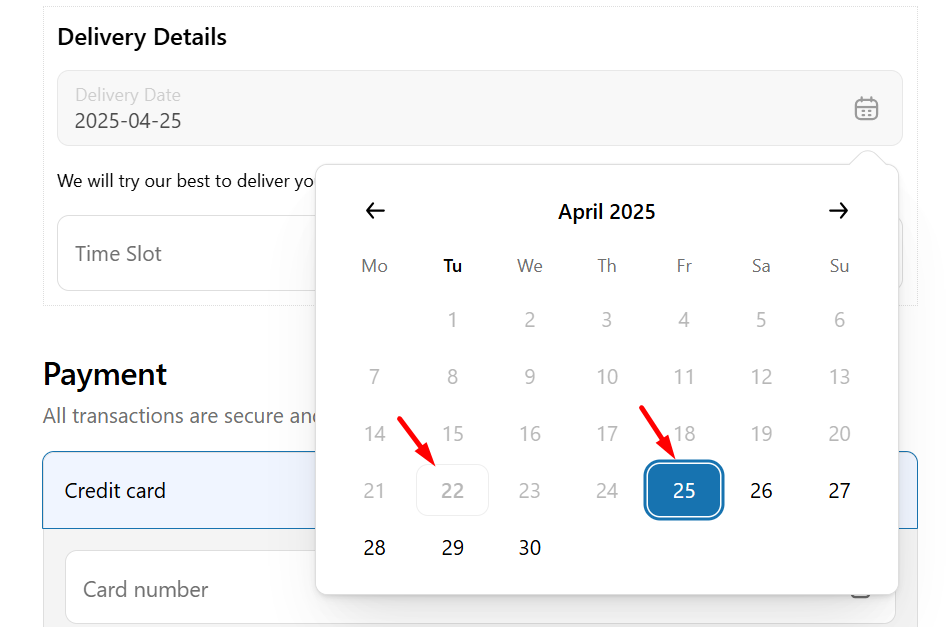
- Suppose you run an online laptop store and you do not deliver on Wednesday and Thursday. You want orders placed on Tuesday before 12 PM to show Friday as the earliest available delivery date (skipping Wednesday & Thursday).
How to Configure:
- For Tuesday, set the Next Day Cut-off to 12:00 PM and Weekday Before Next Day Cut-off Time to Friday.
Frontend Experience:
If the customer places the order before 12 PM on Tuesday, the earliest available delivery date will be Friday.
Weekday After Next Day Cut-off Time #
This setting allows you to define the first available weekday on the calendar when an order is placed after the next day cut-off time.
By default, when the cut-off time has passed, the next available delivery date is the following weekday. However, if you wish to skip a specific weekday and show a different one as the next available option, this setting allows you to override the default behavior.
Example Scenario:
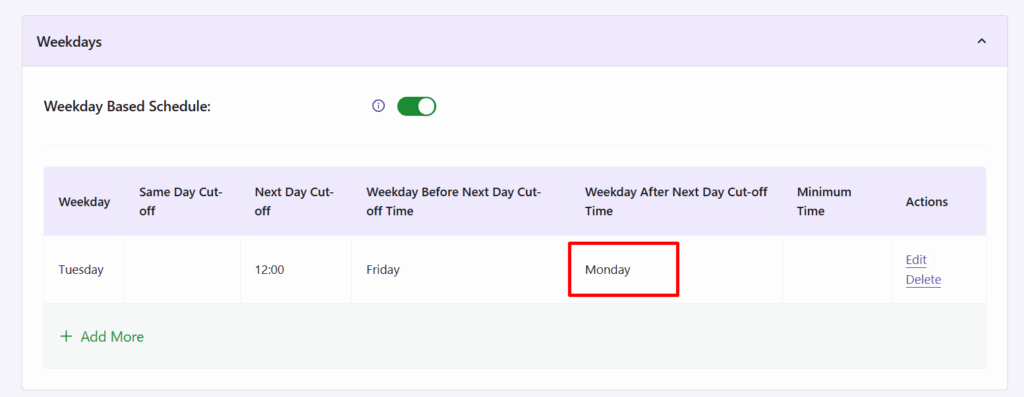
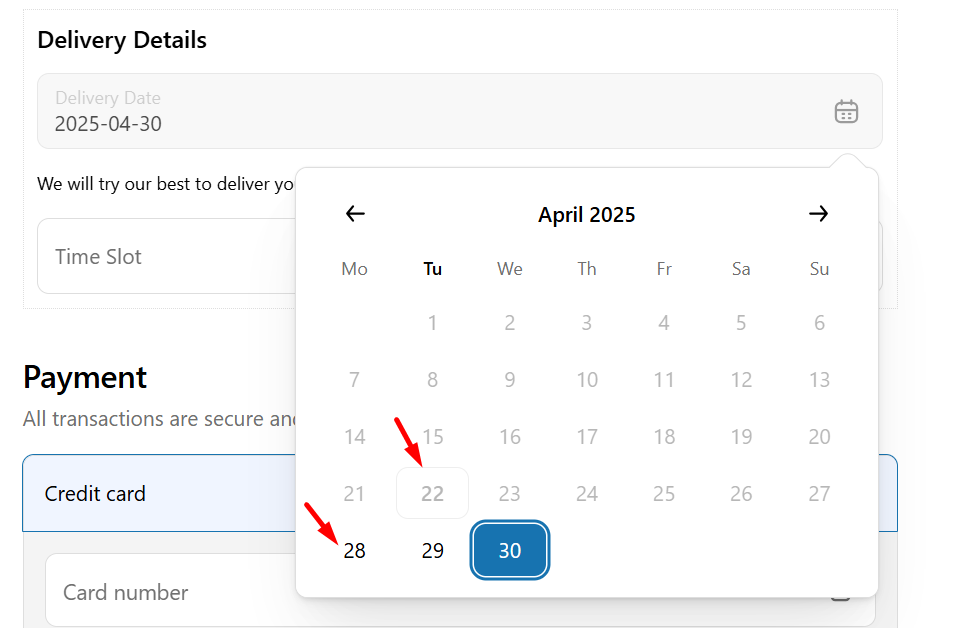
- Continuing with the previous scenario, if the Next Day Cut-off Time for Tuesday is set to 12 PM, and you want orders placed after 12 PM to show Monday as the first available weekday, then you need to set the ‘Weekday After Next Day Cut-off Time’ to Monday.
How to Configure:
- Set Weekday After Next Day Cut-off Time to Monday.
Frontend Experience:
If someone visits after 12:00 PM on Tuesday, only Monday (and beyond) will be shown as delivery options.
Minimum Delivery Time (in hours) #
This setting allows you to define a minimum preparation time (in hours) required before an order can be delivered on a specific weekday. It is especially useful for businesses like cake shops, florists, or meal prep services, where preparation time may vary depending on the day.
Example Scenario:
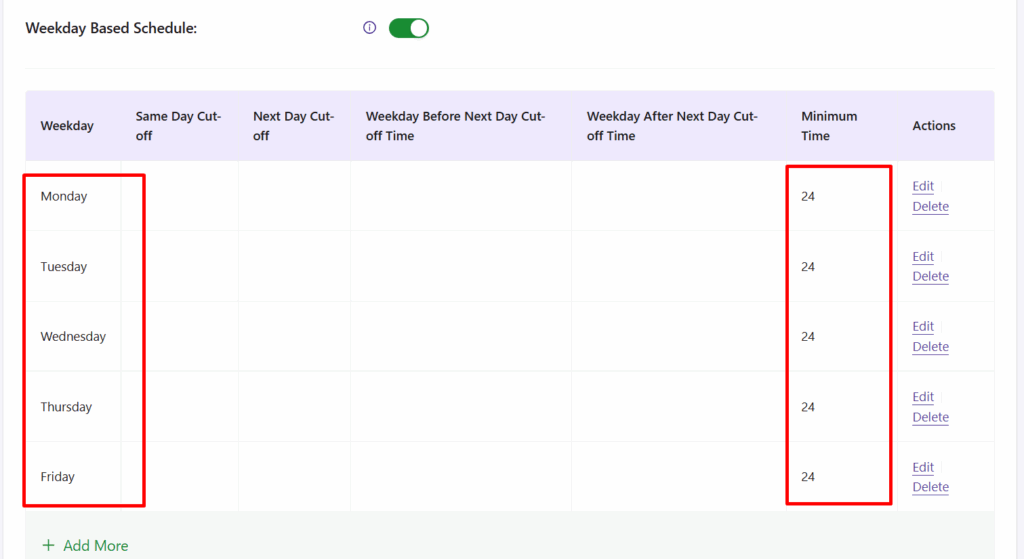
Let’s say you deliver cakes from Monday to Friday, and usually require 24 hours to prepare the cakes. However, on Fridays, due to increased order volume or staff limitations, you need 48 hours to prepare deliveries. In this case:
How to Configure:
- Set the Minimum Delivery Time for weekdays between Monday to Friday to 24 hours
- Set the Minimum Delivery Time as 48 hours for Saturday.
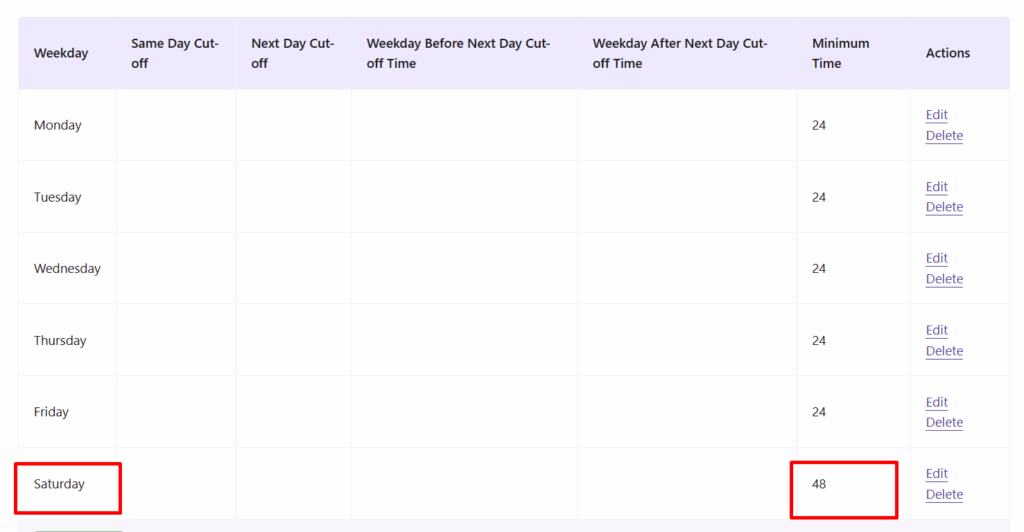
Frontend Experience:
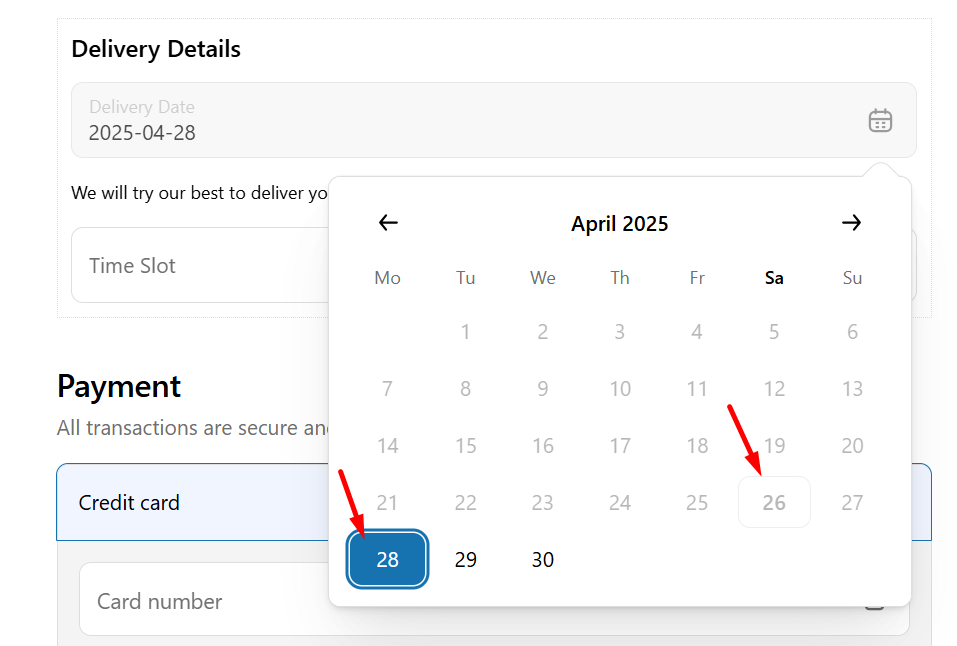
If an order is placed between Monday and Friday, and the minimum delivery time is set to 24 hours, the earliest delivery will be the next available day.
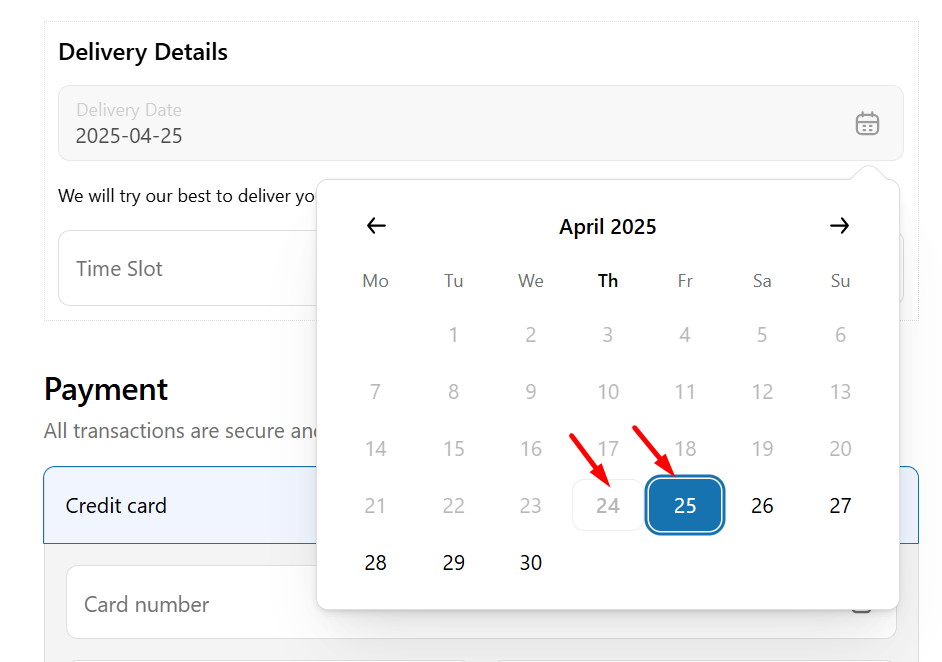
If the order is placed on Saturday, the earliest possible delivery will be Monday, since Saturday requires 48 hours for the preparation time.
Actions #
The Actions section allows you to edit/delete, and manage the configuration for each weekday.
- Click the Save button to apply and store the settings configured for a specific weekday.

- Once saved, you can use the Edit icon to modify the settings or the Delete icon to remove the weekday configuration entirely.


