Studio Six Apps

    • Knowledgebase
    • Sample Page
betterdocs-category-icon

Flexi Delivery & Pickup Date

37
  • Getting Started
    • Installation
    • Add Delivery Date & Time Fields to Shopify Templates
    • Import or Export Delivery Settings
  • Common Delivery Schedule Settings
    • Date Settings
      • How to show the estimated delivery date text?
      • How to add the maximum number of deliveries you can manage?
      • How to set a cut-off time for Same Day and Next Day deliveries?
      • How to set up preparation time for deliveries?
      • How to enable Delivery Days & Specific Delivery Dates?
    • Additional Settings of Custom Delivery Schedule
      • How Do Custom Delivery Schedules Work in Different Combinations?
      • How to prioritize custom delivery schedules?
      • How to Let Customers Choose Between Delivery and Pickup?
      • How to Create a Custom Delivery Schedule Based on Pickup Locations?
      • How to Create a Custom Delivery Schedule Based on Collections?
      • How to Create a Custom Delivery Schedule Based on Shipping Methods?
      • How to Create Custom Delivery Schedule Settings Based on Products?
    • Setting Up Delivery Time Slots
      • How to set up time slots for different weekdays and specific dates?
      • How to create additional charges for the ‘As Soon As Possible’ time slot option?
    • Weekday Based Delivery Schedule
      • Weekday Based Delivery Schedule
    • Additional Delivery Charges
      • How to Set Up Rush Delivery Charges Based on Urgency?
      • How to set a Minimum Order Amount for waiving delivery charges? 
      • How to set additional charges for Same Day & Next Day Delivery ?
    • Holidays
      • How do I block certain dates as Holidays?
  • Settings
    • Set Business Working Days
    • Block Time Slots
    • Common Schedule Settings
      • How to Set the Global Maximum Order Deliveries for Time Slots?
      • How to Apply the Default Delivery Schedule When No Priority is Set?
      • How to Use Global Maximum Orders per Day for Custom Settings?
      • How to add the maximum number of deliveries you can manage per product?
  • Appearance
    • Field Appearance
    • Calendar Appearance Settings
  • Order Listing
    • Order Listing
  • Delivery Calendar
    • How to Filter Order Deliveries in the Delivery Calendar?
    • View Orders by Day, Week, or Month
    • Order Display
  • Pricing
    • Pricing Plans & Upgrade Options
  • FAQs
    • FAQs & Troubleshooting Guide
  • Uninstall the App
    • Uninstall the App
  • Home
  • Docs
  • Flexi Delivery & Pickup Date
  • Delivery Calendar
  • How to Filter Order Deliveries in the Delivery Calendar?

How to Filter Order Deliveries in the Delivery Calendar?

Table Of Contents
  • Filter By View: Product or Orders
  • Filter By Order Status
  • Filter By Delivery Method

You can quickly narrow down your order deliveries using filters in the Delivery Calendar.

  • In your Shopify admin dashboard, go to Apps > Flexi Delivery & Pickup Date > Delivery Calendar.
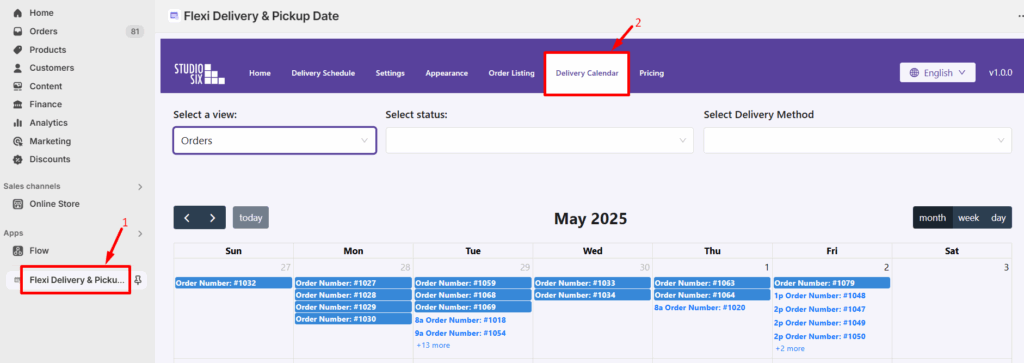
  • You’ll find these filtering options at the top of the calendar.
    • Filter By View: Product or Orders
    • Filter By Order Status
    • Filter By Delivery Method

Filter By View: Product or Orders #

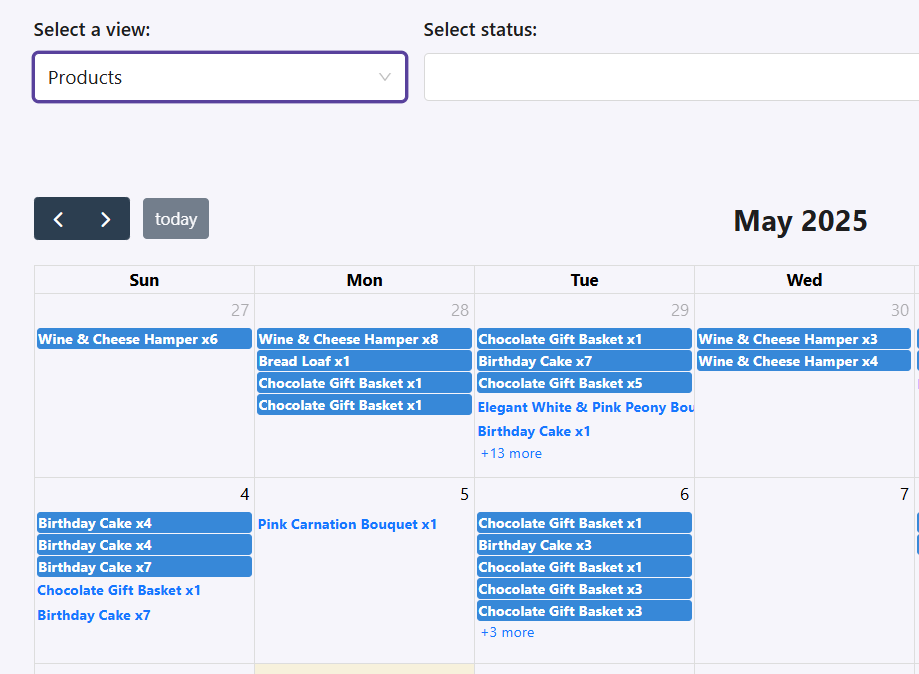
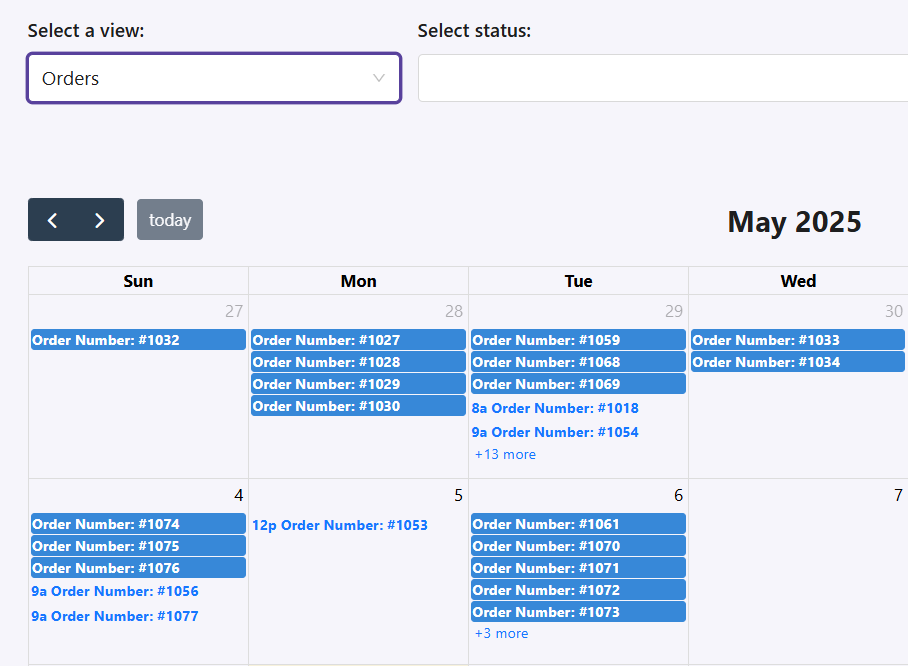
There are 2 options for filtration, By Product or By Order, as shown below:

When the Product filter is selected, all orders on the calendar will display the product names.

If you switch to the Order filter, the calendar will show the order numbers instead of the product names.
Filter By Order Status #

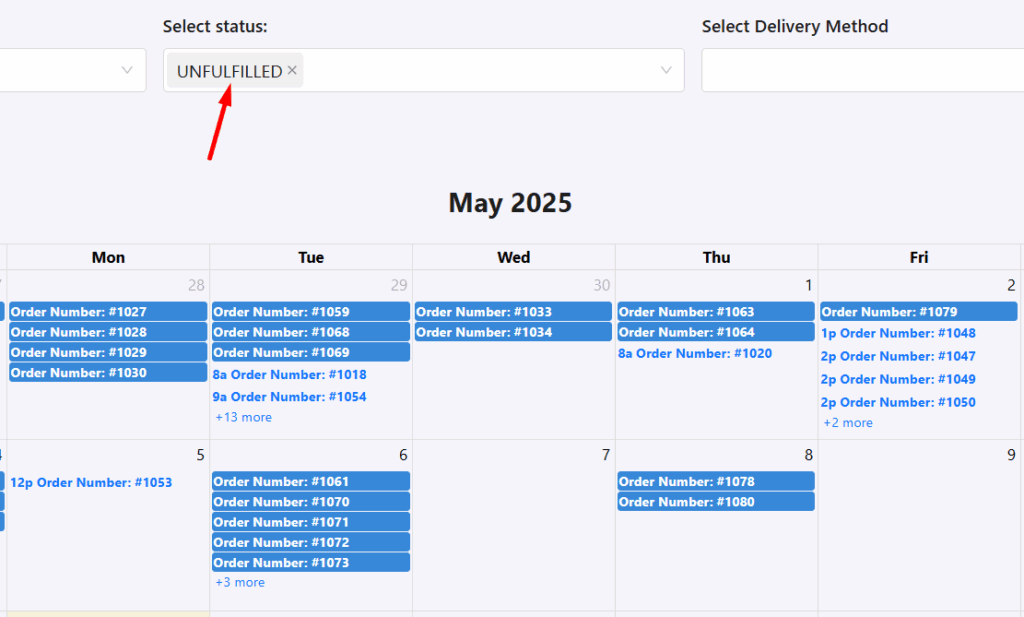
Use the dropdown under Order Status to select Unfulfilled.

The calendar will then update to show only the orders that are still waiting to be fulfilled.
Filter By Delivery Method #

  • Click on Select Delivery Method
  • Choose from the list of available methods (e.g. Express International Shipping ).Once it has been filtered, you’ll see the orders in the calendar as shown here:
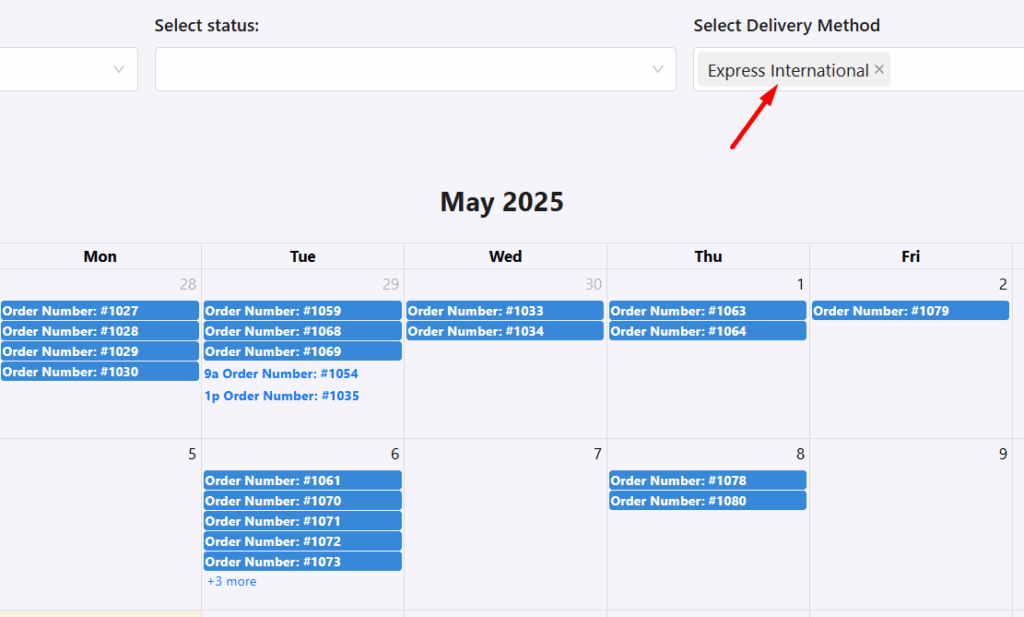
Whether you want to see orders by product, order status, or delivery method, just set the filters and the calendar will update right away.

What are your feelings
Share This Article:
  • Facebook
  • X
  • LinkedIn
  • Pinterest
Updated on May 12, 2025

Studio Six Apps

  • Blog
  • About
  • FAQs
  • Authors
  • Events
  • Shop
  • Patterns
  • Themes

Twenty Twenty-Five

Designed with WordPress