Setting time slots for weekdays or specific dates lets you control when orders are delivered. This way, customers can choose a delivery time that suits them.
Enable Time Slot Settings #
- From your Shopify admin dashboard, navigate to Apps > Flexi Delivery & Pickup Date > Delivery Schedule.
- Click the Edit (pencil icon) for the delivery schedule where you want to add the timeslots.

- In the Time Slot section, enable the ‘Enable Time Slot Capture‘ setting.
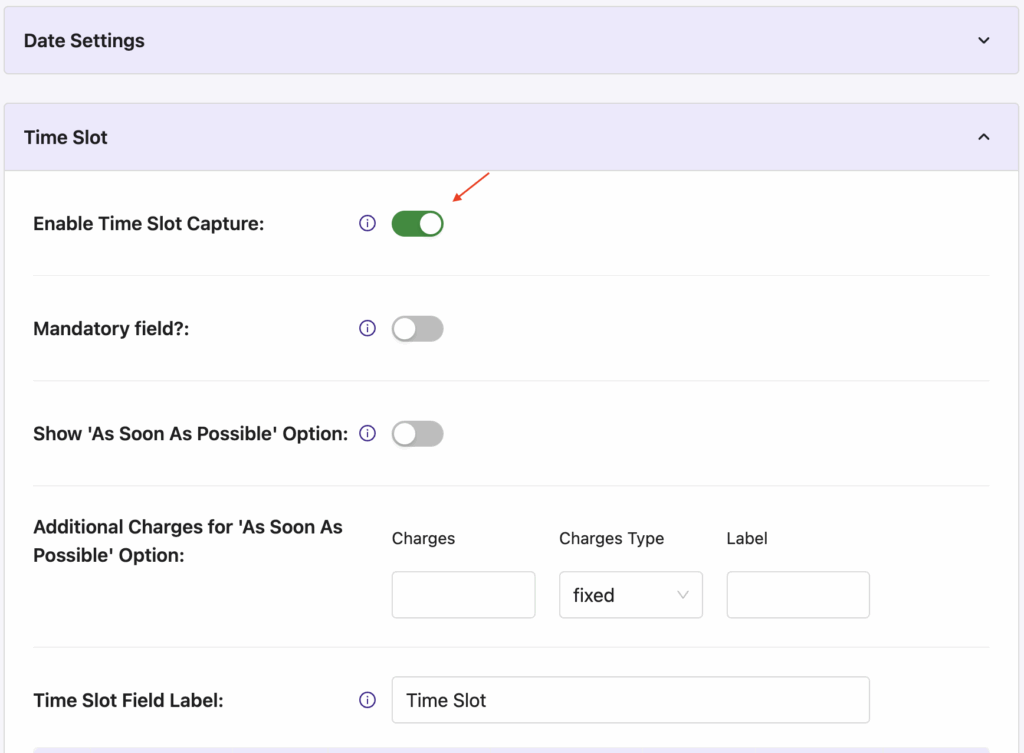
Additional Options #
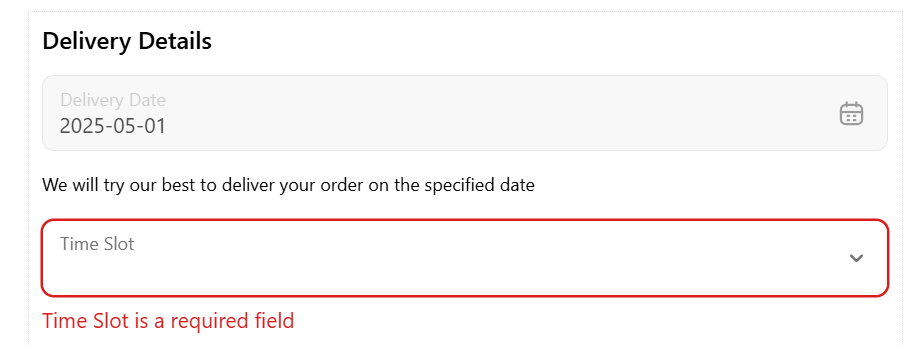
- Mandatory Field?
This will make the time slot selection compulsory on the Checkout page. It ensures that no orders are processed without selecting a delivery time.
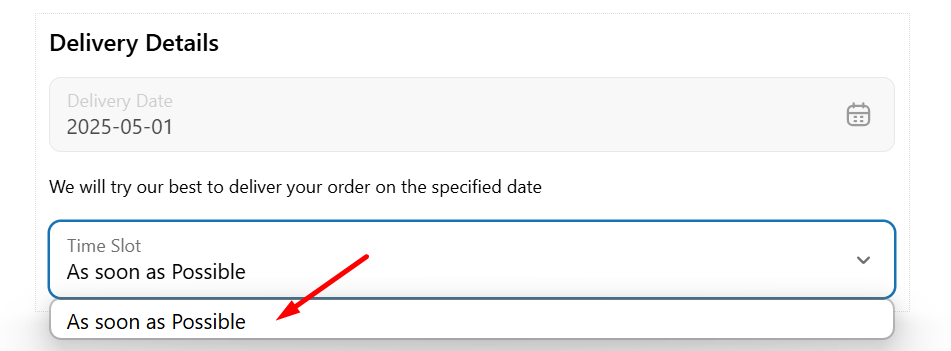
- Show ‘As Soon As Possible’ Option
Enable this option to allow customers to choose “As Soon As Possible” as a delivery time option.
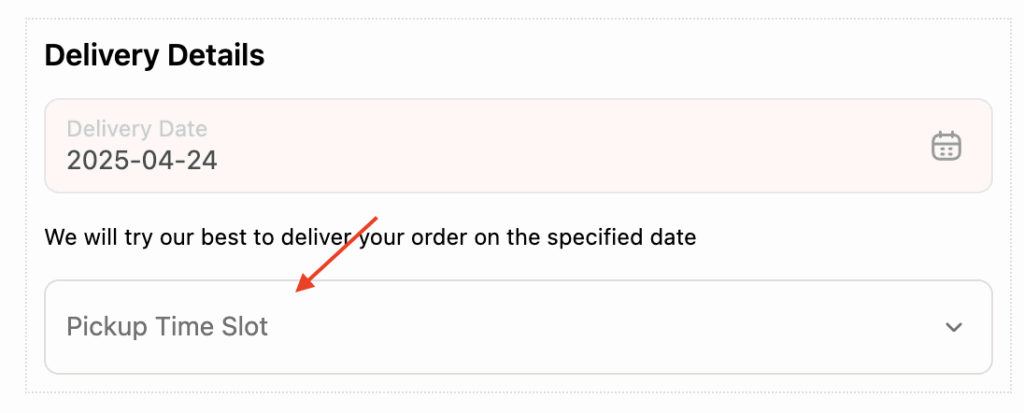
- Time Slot Field Label
The default label is “Time Slot,” but you can customize this to anything you wish(e.g., “Pickup Time Slot”).
Adding Time Slots #
You can add delivery time slots based on:
- Weekdays
- Specific delivery dates
For both types, you can choose one of two methods:
- Add Individual Time Slots – Set different time slots one by one for weekdays or dates.
- Add Time Slots in Bulk – If you have more time slots, use this option to create them in one go for weekdays or specific dates.
- Add Individual Time Slots – Set different time slots one by one for weekdays or dates.
Add Individual Time Slot for Weekdays #
- From the Time Slot Table, click on + Add Individual Time Slots. A pop-up window appears from which you can configure time slots for both Weekdays and Specific Delivery Dates.
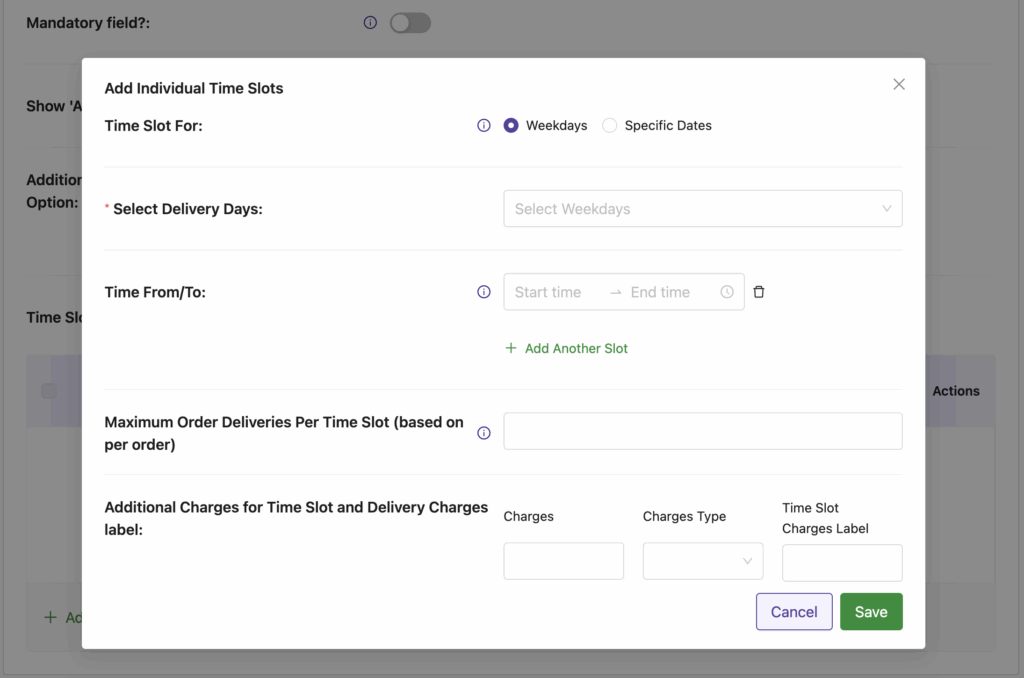
- To add a specific time slot for a particular day of the week, select the weekday(s) option from the ‘Time Slot For’ dropdown.
- Click on the Select Delivery Days field and select the delivery day(s) you wish to apply the time slots to.
- Go to ‘Time From/To’ and enter the start and end time for each delivery slot. If you wish to add multiple time slots, simply click ‘+ Add Another Slot’ after entering each one.
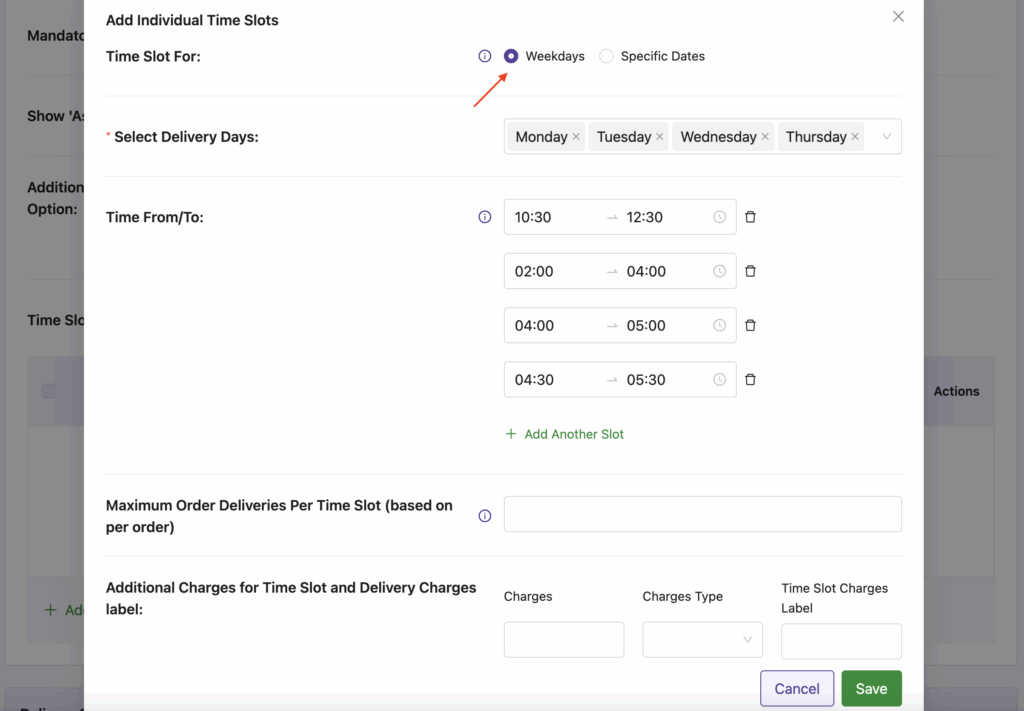
- Click the Save button.
- You will see a list of the created time slots in the table.

- Click Save Settings once you’ve configured your time slot settings. These slots will now be visible in the checkout process.
Frontend Experience
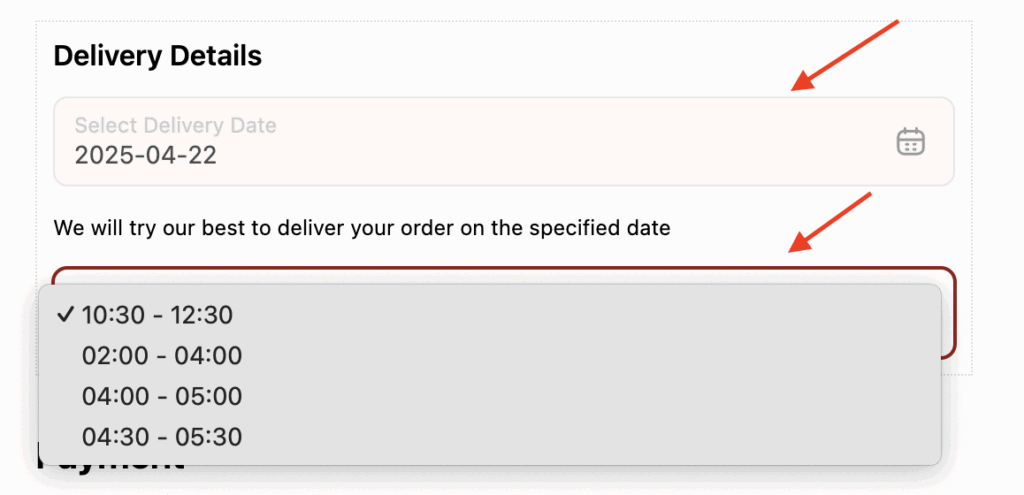
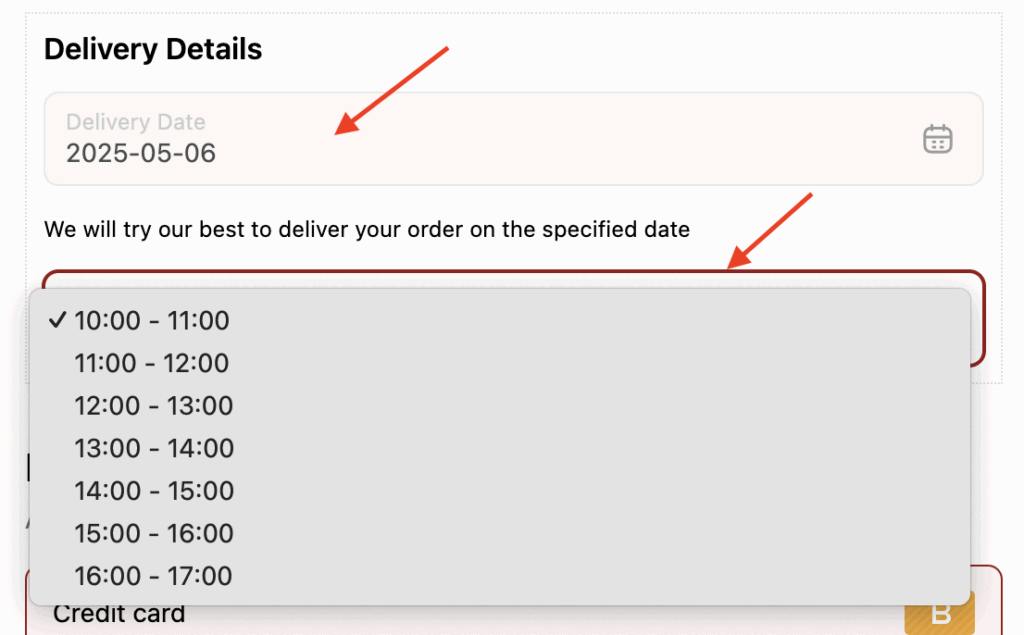
On the Checkout page, a Time Slot dropdown will appear that will display the exact time slots you configured for that delivery day. If multiple slots are available (e.g., 10:30 AM – 12:30 PM, 2:00 PM – 4:00 PM), the customer can choose one according to their preference.
Add Individual Time Slot for Specific Delivery Dates #
If you have added some specific dates already under the Date Settings section, as explained here, then you can assign different time slots to those dates.
- Click on the ‘+Add Individual Time Slots’ pop-up, choose the Specific Dates option from the Time Slot For setting.
- Click the Select Delivery Days field and select the required delivery date(s) for which you want to set the time slots.
- Set the Time From and Time To for each time slot, just as you would for weekdays.
- Use +Add Another Slot to include multiple time slots for that date if needed.
- Click Save, and your time slots for specific dates will appear in the table.
- Don’t forget to hit Save Settings.


Frontend Experience
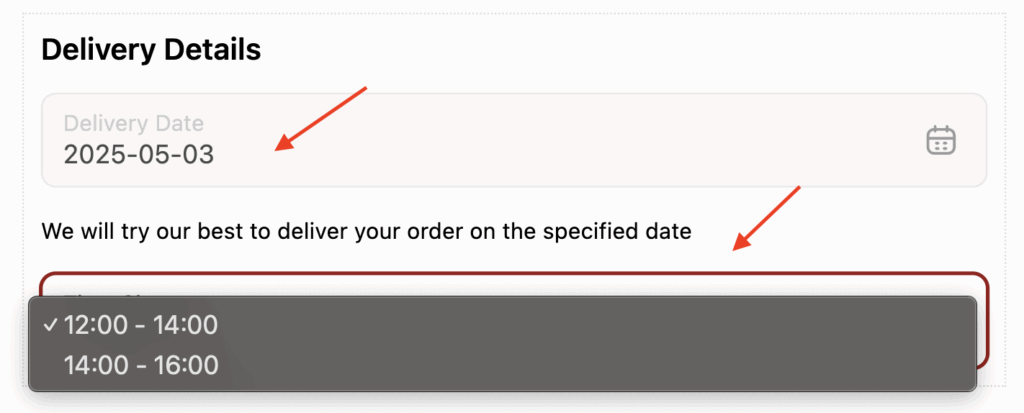
When a customer selects a specific delivery date at checkout, only the time slots assigned to that exact date will appear in the Time Slot dropdown.
Add Time Slots in Bulk #
If your store has the same delivery schedule on multiple days, adding time slots one by one can take time. The Add Time Slots in Bulk option lets you apply the same set of time slots to multiple delivery days and specific delivery dates at once.
Here’s what all you’ll need to follow to add time slots in bulk:
- Click ‘+ Add Time Slots in Bulk’ from the Time Slot Table.

- A popup window will appear, allowing you to configure multiple time slots at once.

At the top of the popup, select whether you want to create time slots for:
- Weekdays – Apply time slots to your delivery days (e.g., every Monday, Friday).
- Specific Dates – Apply time slots only to specific dates you’ve already added in the Date Settings section.
- If you have selected Weekdays, choose one or more days (e.g., Monday, Tuesday, Wednesday) from the Select Delivery Days.
- Enter the length of each time slot in minutes. For example, Enter 60 for 1-hour time slots (e.g., 10:00 AM – 11:00 AM).
- Enter the Interval Between Time Slots (in minutes). This defines the gap between the end of one slot and the start of the next. For instance,
- Enter 0 if you want back-to-back slots
- Enter 15 for a 15-minute buffer between slots.
- The “Time From” and “Time To” fields let you set the start time and end time for your delivery time slots (e.g 10:00 AM to 5:00 PM).

- Save Your Settings.
Your time slots will now appear in the Time Slot Table.


- Lastly, don’t forget to click Save Settings to finalize the delivery schedule.
Frontend Experience
Customers will only see the time slot options that correspond to those specific days and dates they select on the checkout page
Managing Time Slots #
While you create/edit the timeslots, you’ll find a few additional configuration options available.
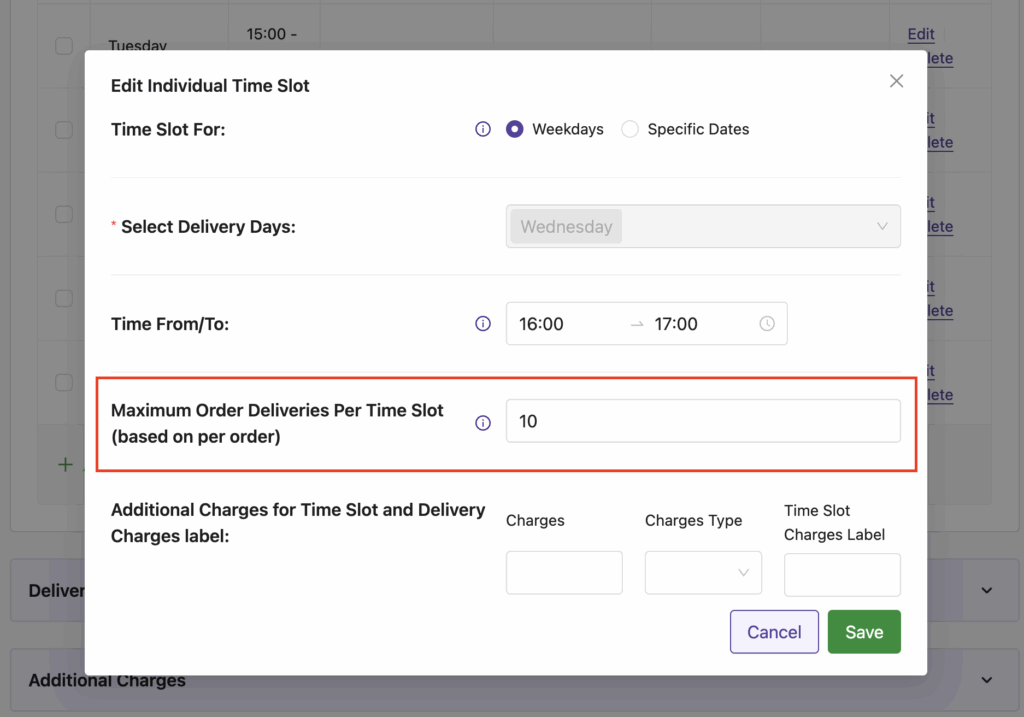
Maximum Order Deliveries Per Time Slot (based on per order) #
This setting lets you limit how many orders can be placed for a time slot. For example, on Wednesday, 4:00 PM – 5:00 PM (16:00 – 17:00) can be capped at 10 orders.
Frontend Experience: What Your Customers Will See
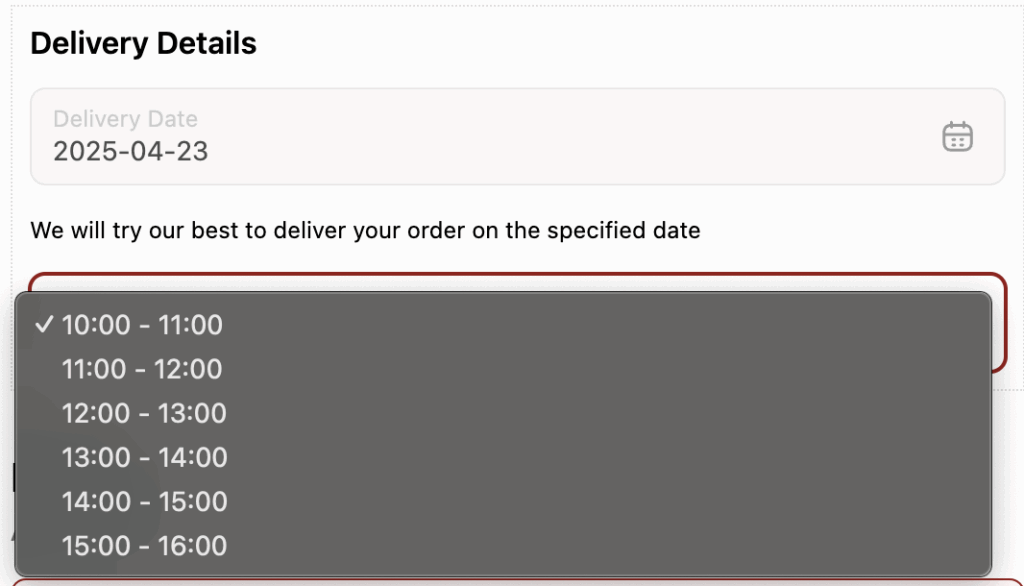
If a customer selects a delivery date that has already reached its maximum order capacity, that time slot will no longer be visible in the Time Slot dropdown.
Add Delivery Charges for Time Slots #
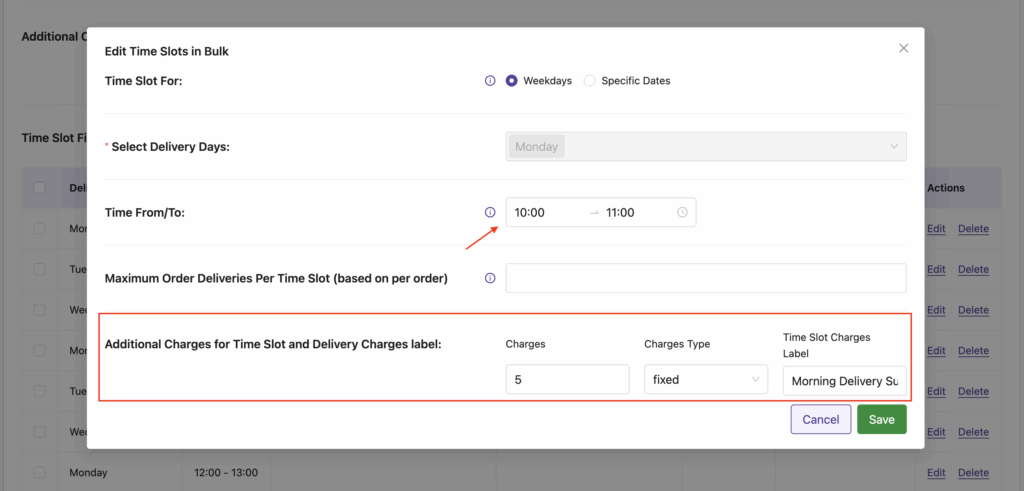
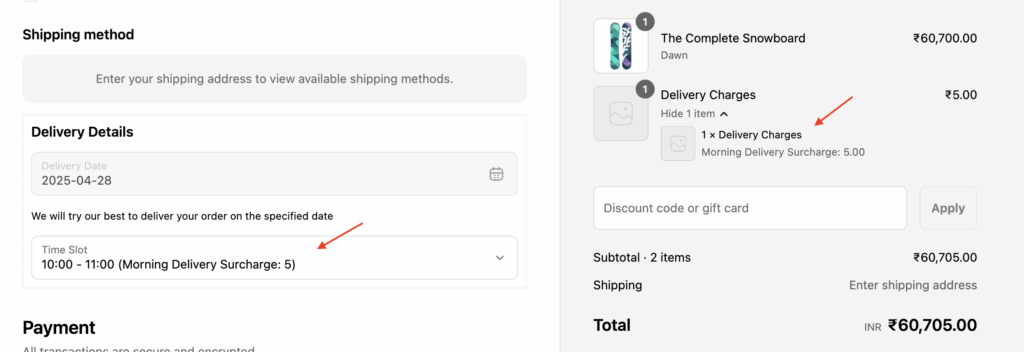
This setting allows you to add an extra delivery fee to a specific time slot for a particular day.(Please note that if this fee is added in bulk, then the extra delivery fee is added to each time slot generated within the specified time range).
A. Charges
Defines the additional amount for the selected time slot.
B. Charges Type
There are two types of charges you can apply:
- Fixed Charges – A flat amount will be added to the order total when the customer selects the time slot.
Example: If you set a fixed charge of $5 for a 6 PM – 8 PM slot, then $5 will be added to the total cost during checkout.
- Percentage Charges – A percentage of the order subtotal will be calculated and added as the time slot fee.
Example: If the subtotal is $100 and the percentage charge is 10%, then $10 will be added for the selected time slot.
C. Time Slot Charges Label
Sets the label shown next to the time slot charge on the checkout page.
Frontend Experience:
When a customer selects a time slot with an extra charge, the fee is automatically added to the order total. It will appear in the order summary with the label you set under the Delivery Charges Label.
These settings give you full control over how and when time slots are offered, letting you manage demand, prevent overbooking, and customize delivery charges, all directly from your store’s checkout flow.


