The Holidays feature lets you block specific dates, like holidays or festivals, from being available for delivery. For example, if your store does not deliver on Labour Day, you can add May 1st as a holiday.
- Setting up Holidays in the Default Delivery Schedule
- Setting up Holidays in the Custom Delivery Schedule
Setting up Holidays in the Default Delivery Schedule #
Let’s walk through how you can configure holidays for your Shopify store in the default delivery schedule.
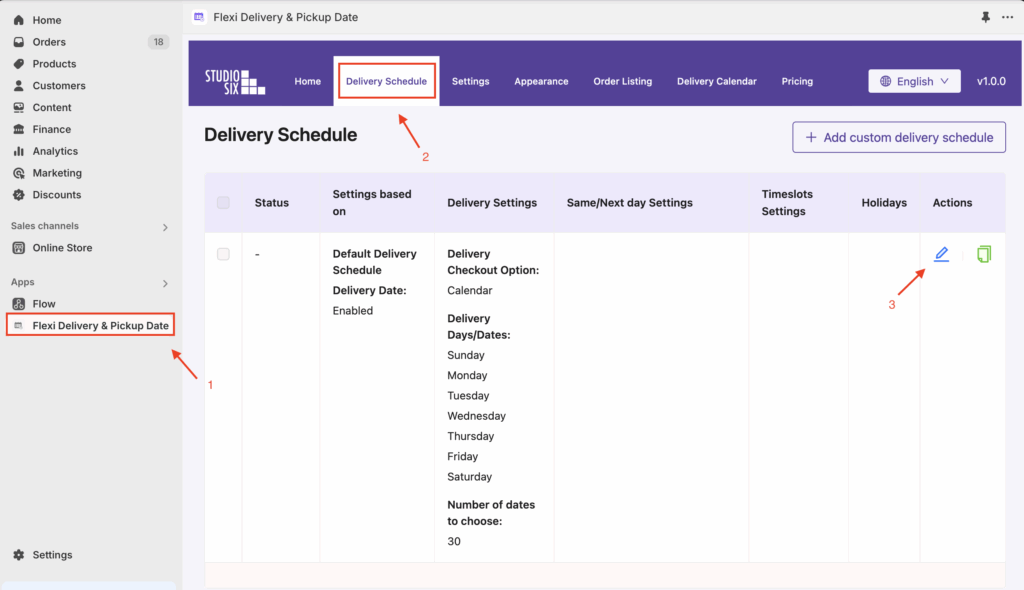
- Go to Apps > Flexi Delivery & Pickup Date > Delivery Schedule.
- Click the Edit icon for the delivery schedule you want to update.
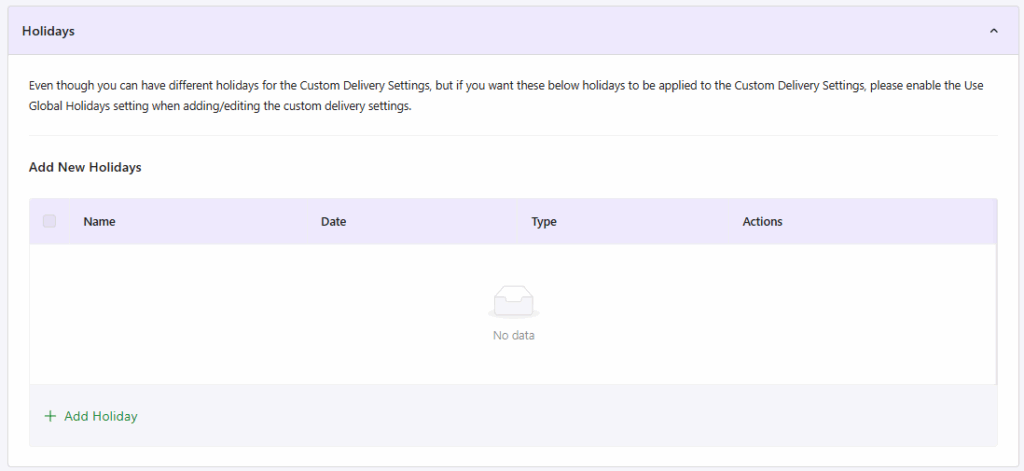
- Navigate to the Holidays section.
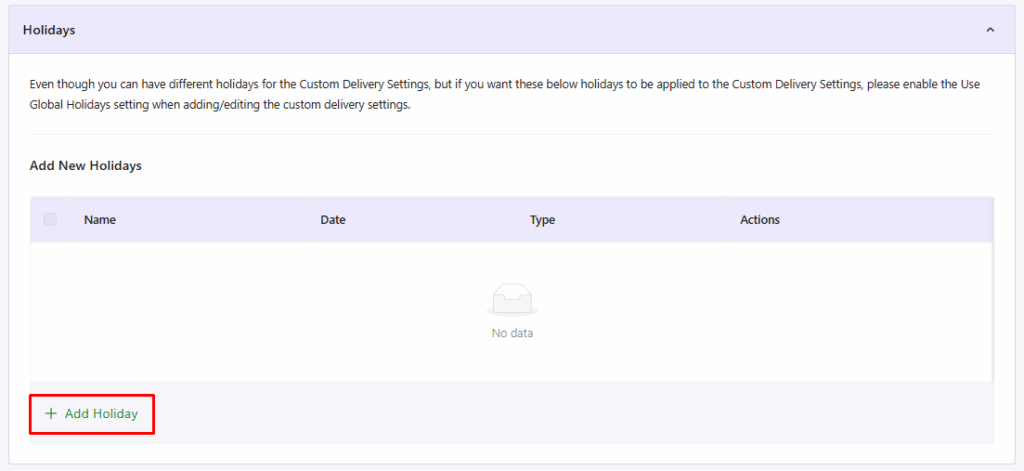
- Click on Add Holiday
- A pop-up shall appear to configure the following options.
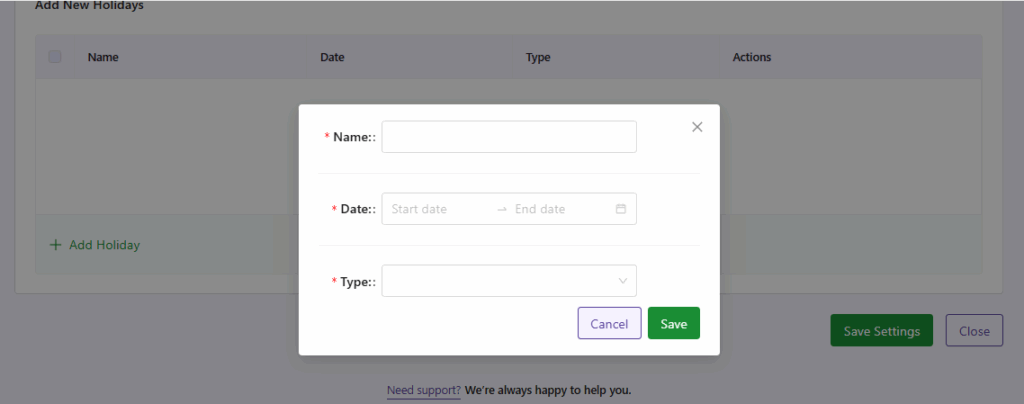
- Name: Add a holiday name that is considered a label. For example, you might name it “Labour Day” for 1st May.
- Date: Select the start date for the holiday range you want to add. It allows you to block a single day or an entire date range.
For example, if your Diwali holidays run from October 22nd to October 24th, you can set the Start date as October 22nd and the End date as October 24th.
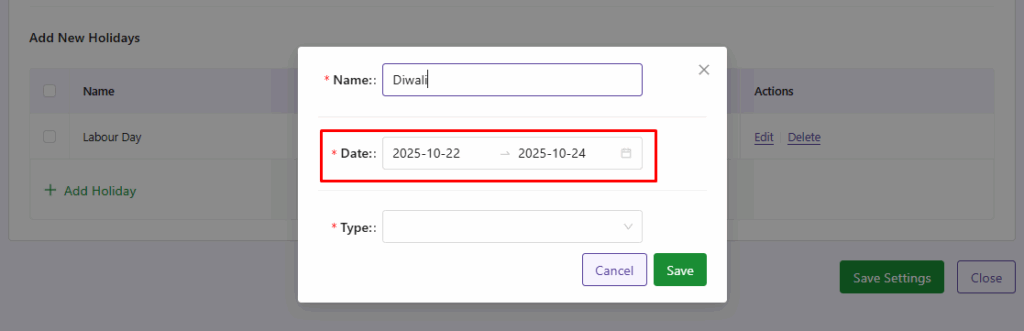
- To set a single-day holiday, simply select the same date for both the Start date and End date fields.
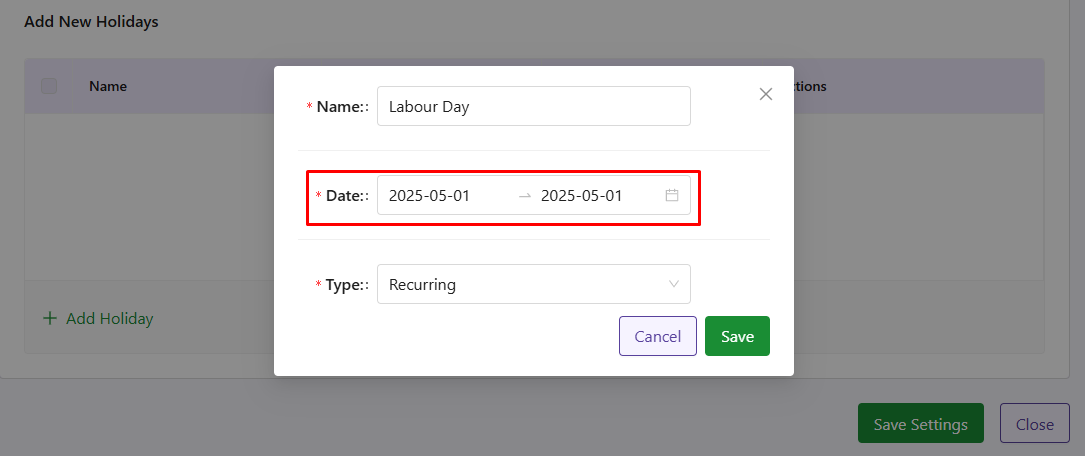
- Type: Choose your holiday to be Current Year or Recurring. The current year applies only for this year and Recurring for every year thereafter.
- Click on the Save button.
After creating the holidays, they will appear in the Holidays List below.
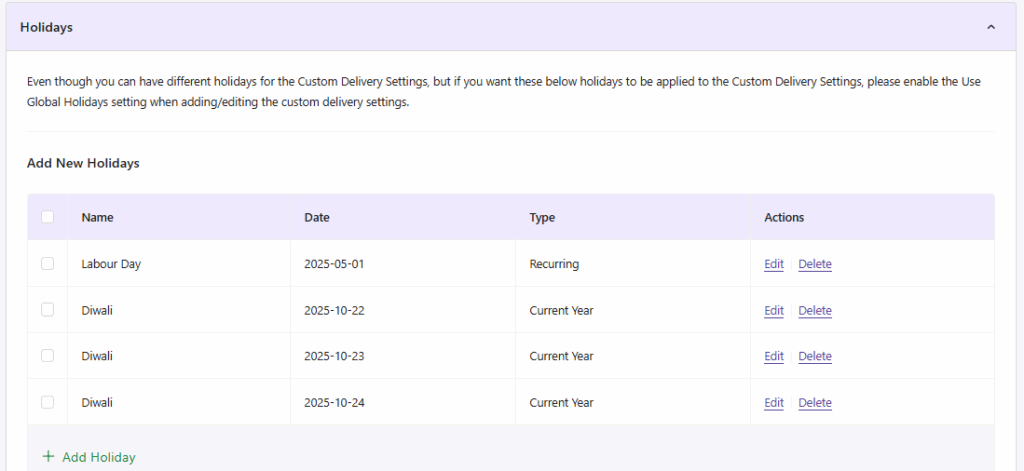
- Finally, click on Save Settings.
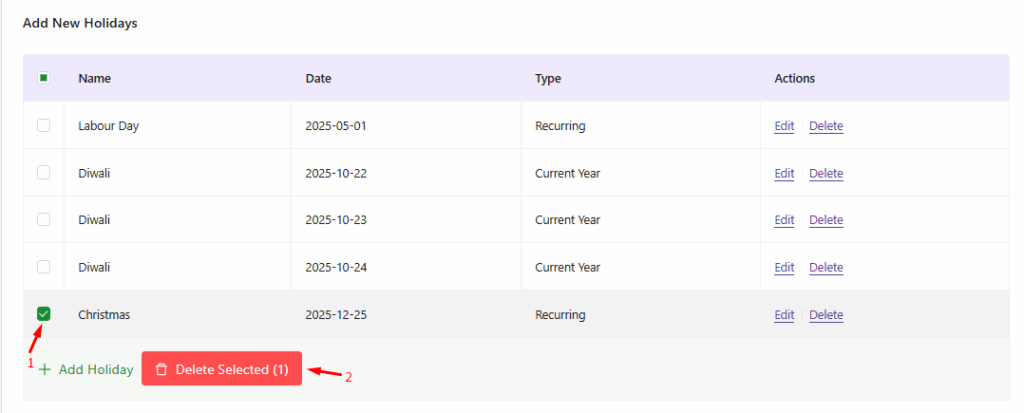
After saving the settings, the holidays will be displayed as shown below.
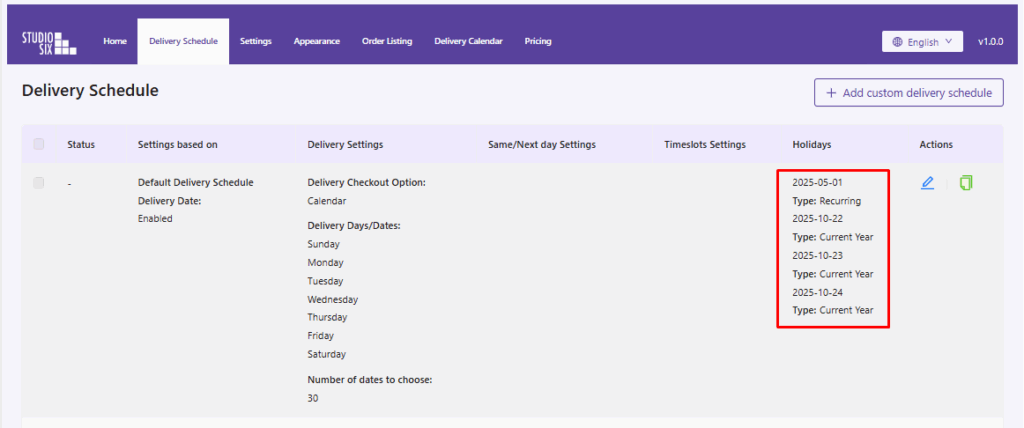
To remove any holidays, select the checkbox next to the holiday row and click the Delete Selected option.
Frontend Experience: What Your Customers Will See #
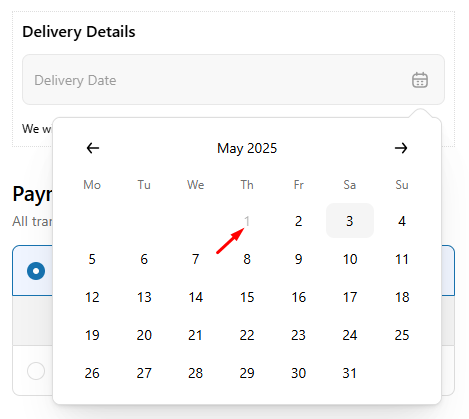
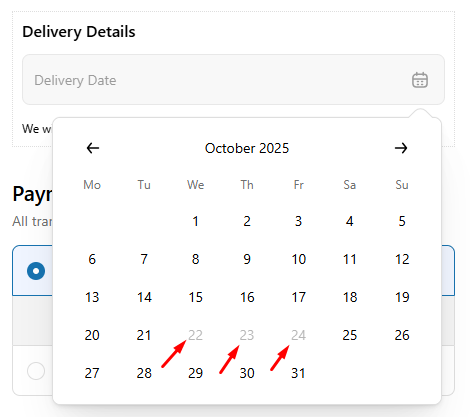
The Holiday dates that we have set, such as May 1st and October 22nd–24th, are disabled in the delivery calendar, ensuring customers can’t select them while placing their order.
Setting up Holidays in the Custom Delivery Schedule #
You can set holidays for your Custom Delivery Schedules just like you do for the Default Delivery Schedule. The only difference is that in Custom Delivery Schedules, you can decide whether you want the holidays added in the Default Delivery Schedule to be applied or not. This is controlled using the Use Global Holidays setting.
- Go to Apps > Flexi Delivery & Pickup Date > Delivery Schedule.
- Click the Edit icon for that custom delivery schedule you want to update.

- Go to the Holidays section and click on it.
- Enable Use Global Holidays only if you want to carry over holidays defined in the default delivery schedule into this custom schedule.
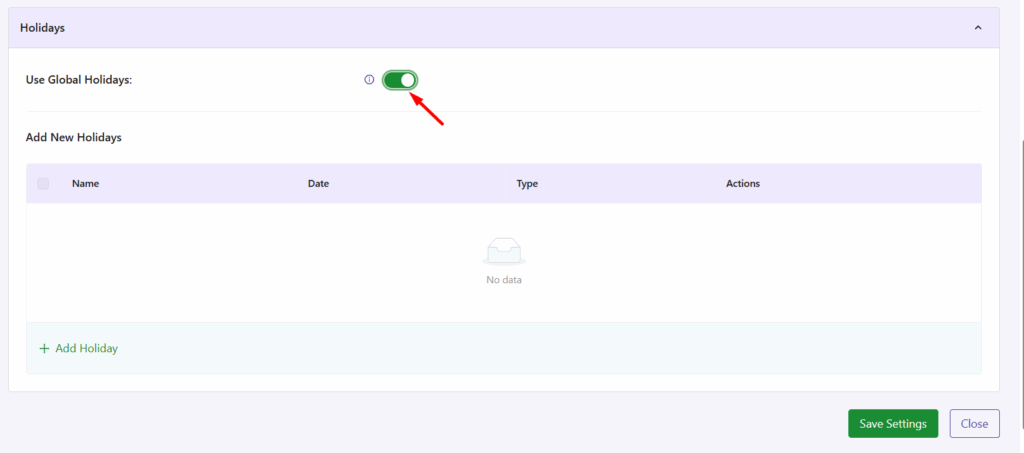
For example, if Labour Day and Diwali are marked as holidays in the default schedule, enabling Use Global Holidays will block these dates in the custom schedule too, along with any additional holidays you set.
- If you don’t want to include global holidays, simply leave the above option unchecked and set your own custom holidays instead.
- Click on the Add Holiday option.
- A pop-up shall appear, configure the following options (Name, Date, and Type) according to your requirements.

- Click on the Save button.
- Lastly, click on the Save Settings button.

Frontend Experience: What Your Customers Will See #
When a customer places an order, the unavailable dates shown will include both the holidays set in the default delivery schedule and those defined in the custom delivery schedule.
They’ll notice that certain dates—like May 1st, April 26th & 27th, and October 22nd to 24th are unavailable for selection in the delivery calendar.

By setting holidays in advance, you can schedule and block deliveries on holidays and improve customer satisfaction.


