Studio Six Apps

    • Knowledgebase
    • Sample Page
betterdocs-category-icon

Flexi Delivery & Pickup Date

37
  • Getting Started
    • Installation
    • Add Delivery Date & Time Fields to Shopify Templates
    • Import or Export Delivery Settings
  • Common Delivery Schedule Settings
    • Date Settings
      • How to show the estimated delivery date text?
      • How to add the maximum number of deliveries you can manage?
      • How to set a cut-off time for Same Day and Next Day deliveries?
      • How to set up preparation time for deliveries?
      • How to enable Delivery Days & Specific Delivery Dates?
    • Additional Settings of Custom Delivery Schedule
      • How Do Custom Delivery Schedules Work in Different Combinations?
      • How to prioritize custom delivery schedules?
      • How to Let Customers Choose Between Delivery and Pickup?
      • How to Create a Custom Delivery Schedule Based on Pickup Locations?
      • How to Create a Custom Delivery Schedule Based on Collections?
      • How to Create a Custom Delivery Schedule Based on Shipping Methods?
      • How to Create Custom Delivery Schedule Settings Based on Products?
    • Setting Up Delivery Time Slots
      • How to set up time slots for different weekdays and specific dates?
      • How to create additional charges for the ‘As Soon As Possible’ time slot option?
    • Weekday Based Delivery Schedule
      • Weekday Based Delivery Schedule
    • Additional Delivery Charges
      • How to Set Up Rush Delivery Charges Based on Urgency?
      • How to set a Minimum Order Amount for waiving delivery charges? 
      • How to set additional charges for Same Day & Next Day Delivery ?
    • Holidays
      • How do I block certain dates as Holidays?
  • Settings
    • Set Business Working Days
    • Block Time Slots
    • Common Schedule Settings
      • How to Set the Global Maximum Order Deliveries for Time Slots?
      • How to Apply the Default Delivery Schedule When No Priority is Set?
      • How to Use Global Maximum Orders per Day for Custom Settings?
      • How to add the maximum number of deliveries you can manage per product?
  • Appearance
    • Field Appearance
    • Calendar Appearance Settings
  • Order Listing
    • Order Listing
  • Delivery Calendar
    • How to Filter Order Deliveries in the Delivery Calendar?
    • View Orders by Day, Week, or Month
    • Order Display
  • Pricing
    • Pricing Plans & Upgrade Options
  • FAQs
    • FAQs & Troubleshooting Guide
  • Uninstall the App
    • Uninstall the App
  • Home
  • Docs
  • Flexi Delivery & Pickup Date
  • Common Delivery Schedule Settings
  • Date Settings
  • How to set a cut-off time for Same Day and Next Day deliveries?

How to set a cut-off time for Same Day and Next Day deliveries?

Table Of Contents
  • Configure a Cut-off Time for Same Day Delivery
    • Frontend Experience: What Your Customers Will See
  • Configure a Cut-off Time for Next Day Delivery
    • Frontend Experience: What Your Customers Will See

Configure a Cut-off Time for Same Day Delivery #

By setting a cut-off time for same-day delivery, you can allow customers to receive their orders on the same day they make the purchase.

For example, if you run a local flower shop that delivers on the same day and you only accept orders until 4:00 PM, set the cut-off time to 16:00 (4:00 PM). This way, customers placing orders before 4:00 PM can choose the same day for delivery.

Follow the steps below to set up Same Day delivery:

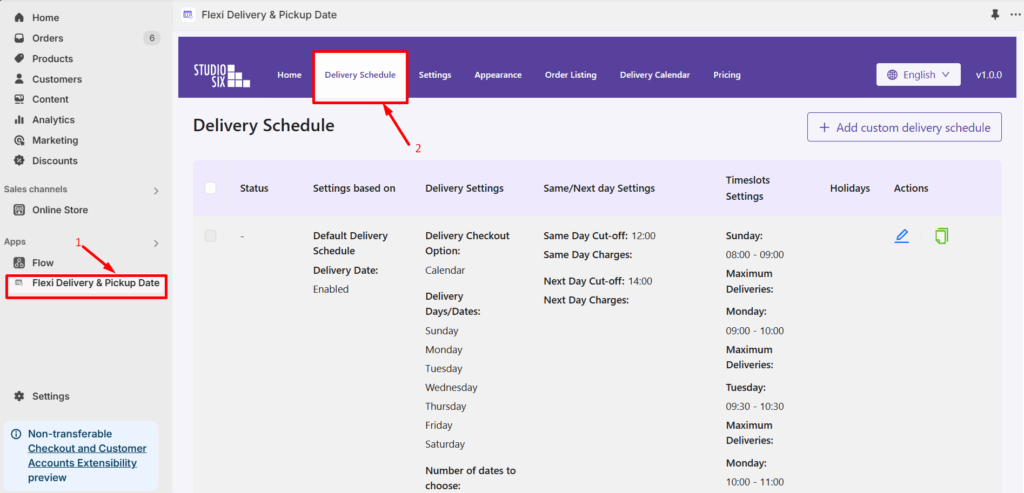
  • Go to Apps > Flexi Delivery & Pickup Date > Delivery Schedule from your Shopify admin dashboard.
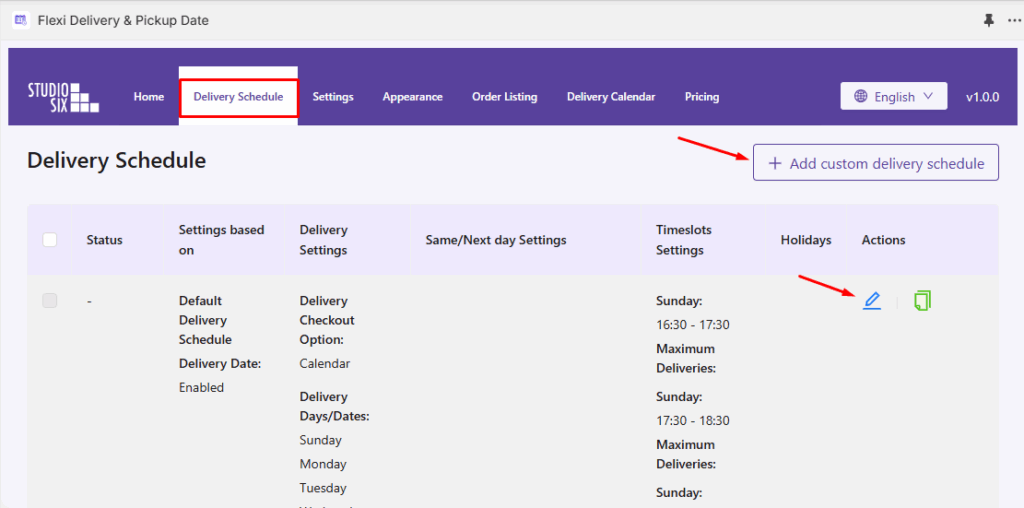
  • Click on the ‘Add Custom Delivery Schedule‘ button to create a new delivery schedule. If you want to edit an existing schedule, click on the pencil icon.
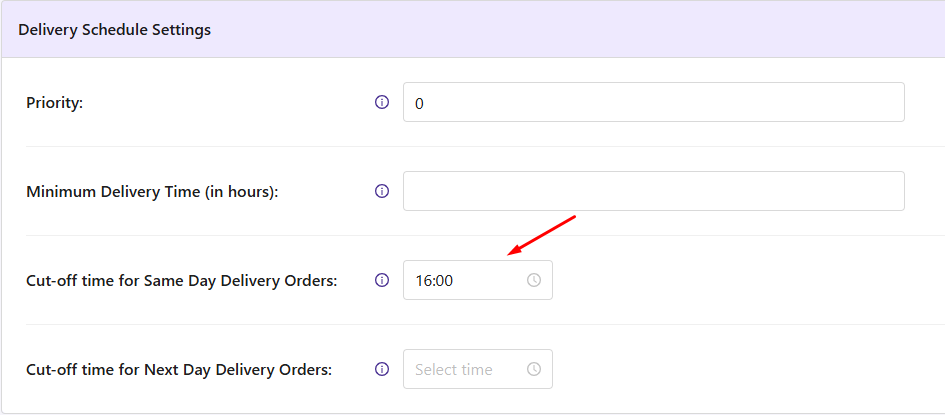
  • Navigate to the Delivery Schedule Settings section, and locate the Cut-off Time for Same Day Delivery Orders option. This is the cut-off time after which you will not accept any more orders for delivery today.
Frontend Experience: What Your Customers Will See #

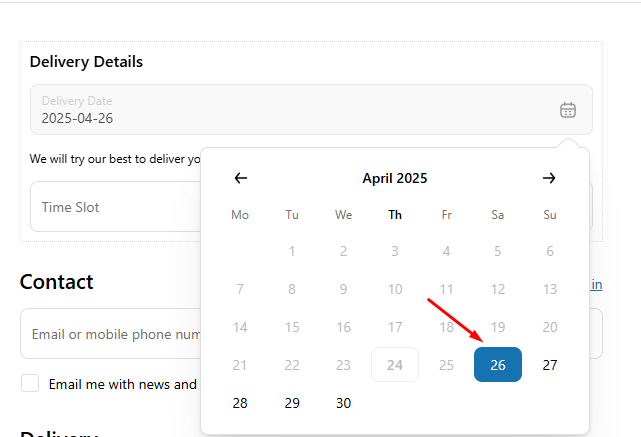
If the customer places their order before the cut-off time, i.e., before 16:00 on April 24, 2025, they will be able to select the same day for delivery.

Note: If a cut-off time for same-day or next-day delivery is not set, the available delivery date will be based on the Minimum Delivery Time field value.
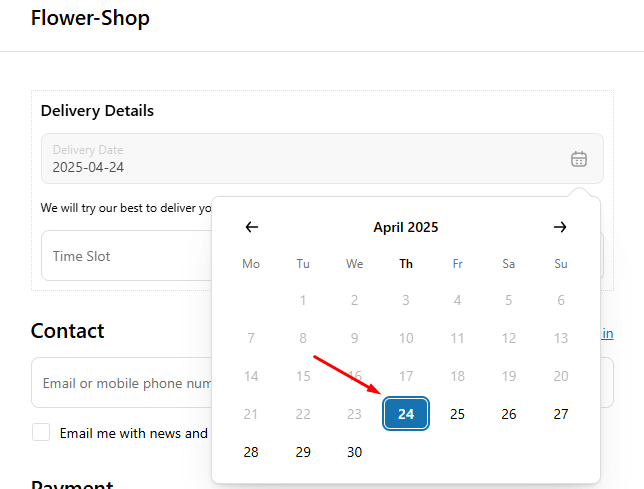
If a customer places their order after the cut-off time of 16:00 on April 24, 2025, the delivery calendar will no longer show April 24, and the next available date will be offered instead.
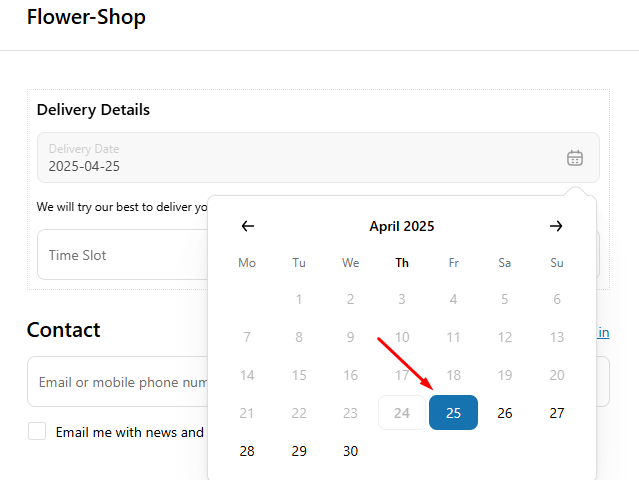
Configure a Cut-off Time for Next Day Delivery #

By setting a cut-off time for next-day delivery, you can allow customers to receive their orders the day after they make the purchase.

Let’s consider a bakery shop that allows next-day delivery for orders placed before 6:00 PM. So, you would set the cut-off time to 18:00 (6:00 PM).

Follow the steps below to Set Up Next Day Delivery:

  • Go to Apps > Flexi Delivery & Pickup Date > Delivery Schedule from your Shopify admin dashboard.
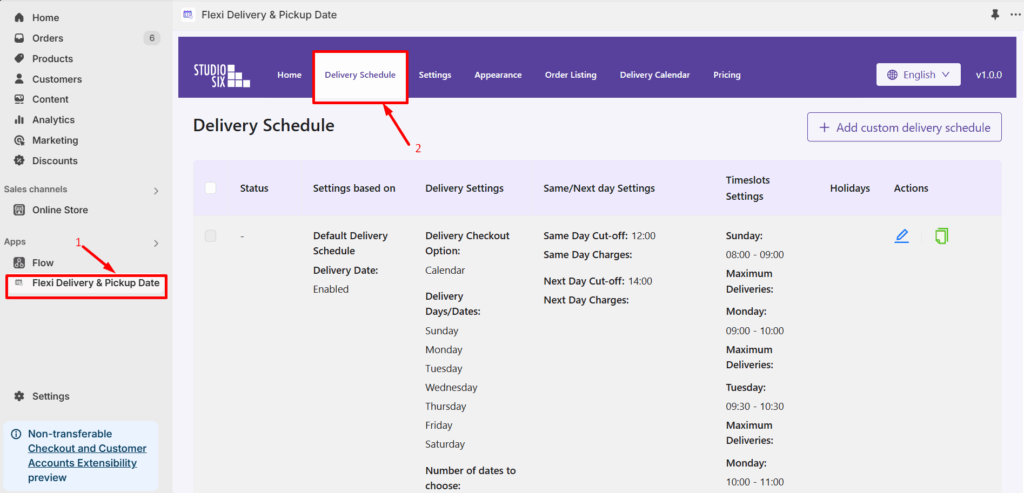
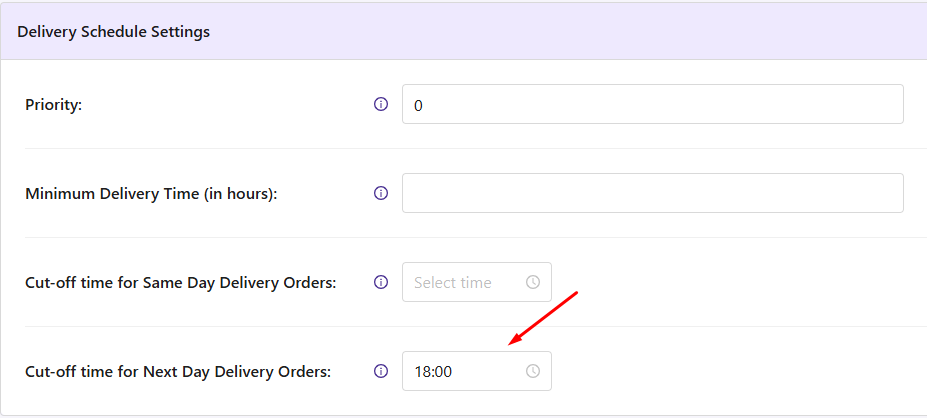
  • Navigate to the ‘Delivery Schedule Settings’ dropdown. You can find the ‘Cut-off Time for Next Day Delivery Orders’ option there.
  • Set the cut-off time to 18:00 (6:00 PM).

Frontend Experience: What Your Customers Will See #

If a customer places their order before the cut-off time of 18:00 on April 24, 2025, they will be able to select the next day on the delivery calendar.
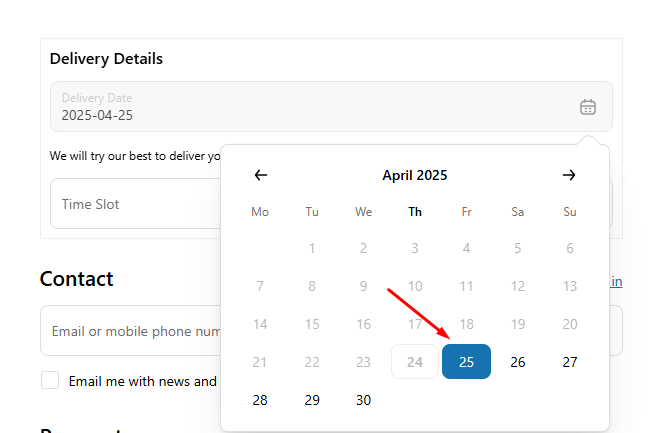
However, if a customer places their order on or after the cut-off time of 6:00 PM on April 24, 2025, the next-day delivery option will no longer be available in the delivery calendar. Instead, the next available delivery date will be shown.

With the right cut-off times in place, you can manage your Same Day and Next Day deliveries effortlessly.

What are your feelings
Share This Article:
  • Facebook
  • X
  • LinkedIn
  • Pinterest
Updated on April 26, 2025

Studio Six Apps

  • Blog
  • About
  • FAQs
  • Authors
  • Events
  • Shop
  • Patterns
  • Themes

Twenty Twenty-Five

Designed with WordPress